Why Is My Balance Sheet Out of Balance in QuickBooks?
In QuickBooks Desktop, your Balance Sheet must always balance — Total Assets must equal Total Liabilities plus Equity. If it doesn’t, it usually indicates damaged transactions, broken links, or company file data corruption.
Common triggers include:
• Corrupted company file
• Broken transaction links
• Multi-currency inconsistencies
• Improper journal entries
• Network interruptions in multi-user mode
While this issue may seem serious, it is usually fixable with systematic troubleshooting.
If you prefer expert assistance instead of manual troubleshooting, you can contact our QuickBooks specialists for immediate support.
Table of Contents
Step-by-Step Fix for Balance Sheet Out of Balance
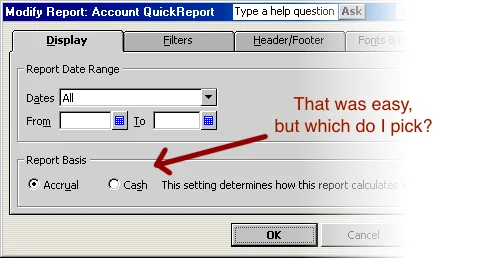
Step 1: Switch the Report to Accrual Basis
First, check whether the imbalance exists in both Cash and Accrual basis.
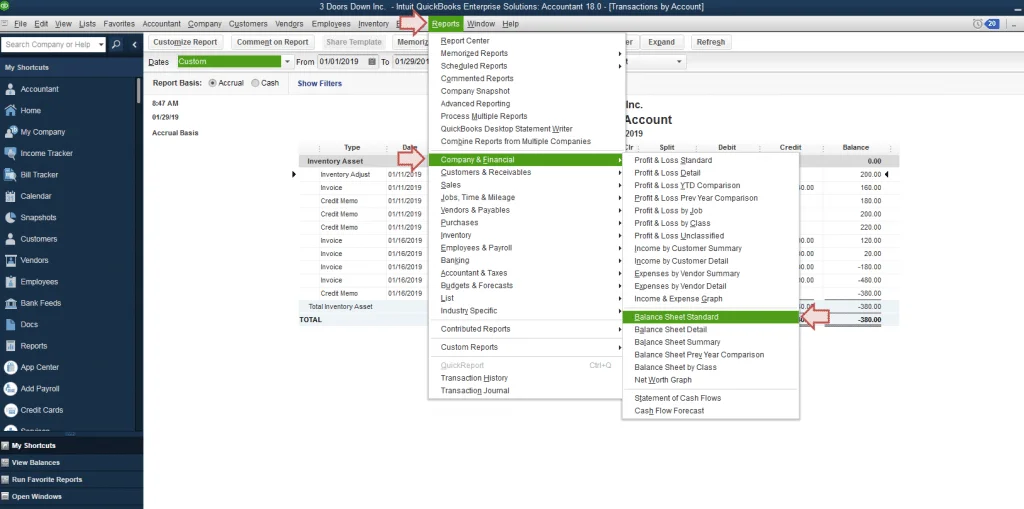
Go to Reports
Select Company & Financial
Choose Balance Sheet Summary
Click Customize Report
Under Display, select Accrual
Click OK
If imbalance appears in both bases, the file may be damaged.
If only in Cash basis, a specific transaction is likely responsible.
Step 2: Identify the Exact Date of Imbalance
Finding when the problem started makes fixing it easier.
Customize the Balance Sheet report
Change display columns to Year, Month, Week, or Day
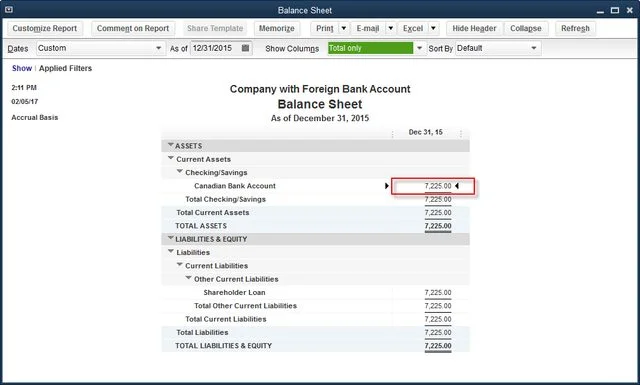
Compare Total Assets with Total Liabilities
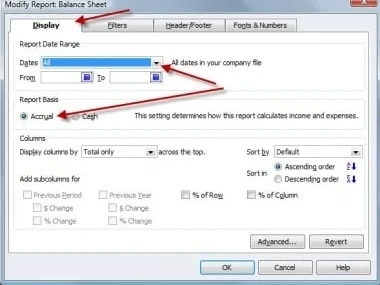
When totals stop matching, you’ve identified the affected period.
Step 3: Locate the Faulty Transaction
Go to Reports → Custom Transaction Detail Report
Enter the identified date range
Set report basis to Accrual
Check only the Amount column
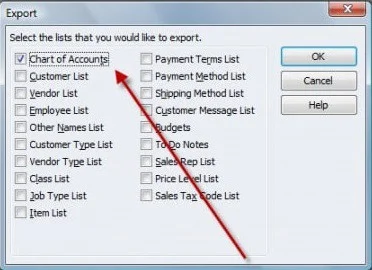
The imbalance difference will appear. That transaction is likely causing the issue.
If not visible immediately, also review:
• Journal entries
• Customer payments
• Vendor transactions
• Other adjustment entries
Step 4: Re-Date the Problem Transaction
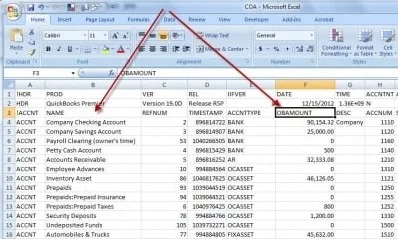
Temporarily change the transaction date to 20 years in the future
Save it
Refresh the report
If the imbalance corrects, revert the date back to original.
This step re-links damaged transaction connections.
Step 5: Delete and Recreate the Transaction
If re-dating doesn’t fix the issue:
Delete the faulty transaction
Re-enter it manually
Verify the report again
Additional Data Repair Step
Run Verify and Rebuild Data:
Go to File → Utilities → Verify Data
If errors appear, select Rebuild Data
Always back up your company file before running rebuild.
Common Causes Behind This Issue
• Company file corruption
• Multi-user file damage
• Improper journal entry edits
• Multi-currency exchange errors
• Hosting misconfiguration
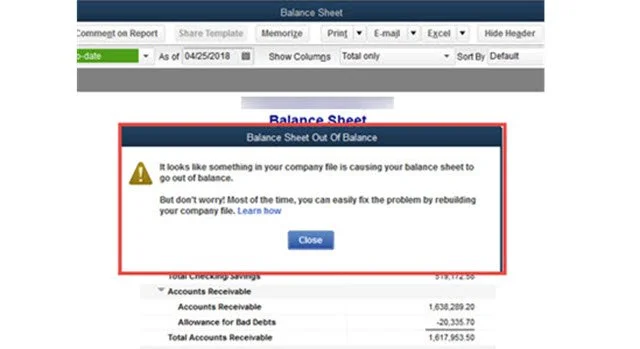
If the imbalance persists even after all steps, advanced data repair may be required. In that case, you can chat with a QuickBooks professional for guided assistance.
Prevent Balance Sheet Issues in Future
• Perform regular data verification
• Maintain consistent backups
• Avoid force shutdown during transactions
• Ensure proper multi-user hosting setup
• Keep QuickBooks Desktop updated
Conclusion
A QuickBooks balance sheet out of balance issue can be alarming, but it is usually caused by broken transactions or minor data corruption. By identifying the affected period, tracking the responsible entry, and verifying file integrity, most users can restore financial accuracy.
If you want a faster and safer resolution without risking further data issues, our experts are available to help chat now.
Frequently Asked Questions
Why does QuickBooks balance sheet not balance?
It usually happens due to damaged transactions, company file corruption, or broken links between entries.
Can multi-user mode cause balance sheet issues?
Yes. Improper hosting setup or network interruption can damage financial data, leading to imbalance.
Does Verify and Rebuild fix balance sheet problems?
In many cases, yes. It repairs minor data corruption affecting financial reports.
Is accrual basis more likely to show imbalance?
No. If imbalance appears only on cash basis, it often points to specific transaction issues.
Related QuickBooks Issues
You may also want to review:
• QuickBooks Error 6190
• QuickBooks Error H505
• QuickBooks Error 3371
• QuickBooks Not Responding When Opening Company File