Installing QuickBooks Desktop should normally be a smooth process. However, sometimes users encounter installation problems that interrupt the process. One of the most common installation issues is QuickBooks Error 1603.
This error usually appears during QuickBooks installation or updates and prevents the program from installing properly. When the issue occurs, you may see the following message:
Error 1603: The update installer has encountered an internal error.
When QuickBooks Error 1603 appears, the installation may stop abruptly, leaving the software partially installed or completely unusable.
In this detailed guide, you will learn the causes of QuickBooks Error 1603, symptoms, and step-by-step troubleshooting solutions to resolve the issue.
If you need immediate assistance fixing QuickBooks installation errors, contact our QuickBooks experts .
QuickBooks Error 1603 is an installation error that occurs when QuickBooks cannot install due to damaged Windows components such as .NET Framework, MSXML, or Visual C++. You can fix it by repairing Windows components, running QuickBooks Install Diagnostic Tool, and updating Windows
Table of Contents
Causes of QuickBooks Error 1603
QuickBooks Error 1603 usually occurs due to problems with Windows components or incomplete installation files. Below are the most common causes behind this error.
- Corrupted QuickBooks installation files
- Damaged Microsoft .NET Framework components
- Corrupted Microsoft C++ or MSXML components
- Insufficient user permissions during installation
- Windows registry issues related to QuickBooks
- Malware or virus infections affecting system files
- Incomplete Windows updates
- Full Windows Temp folder
- Sudden system shutdown during installation
- Outdated QuickBooks Desktop version
What is QuickBooks Error 1603
QuickBooks Error 1603 is an installation error that appears when QuickBooks Desktop fails to install or update properly. This error usually occurs when Windows components required by QuickBooks are damaged or missing.
When this error occurs, QuickBooks installation stops and the setup window may freeze or close unexpectedly.
Symptoms of QuickBooks Installation Error 1603
Users experiencing QuickBooks Error 1603 may notice several warning signs during installation.
- QuickBooks installation stops unexpectedly
- Installation window becomes unresponsive
- QuickBooks installs partially
- Some QuickBooks features may not function properly
- The system may shut down unexpectedly

Step-by-Step Methods to Fix QuickBooks Error 1603
1. Run QuickBooks Install Diagnostic Tool
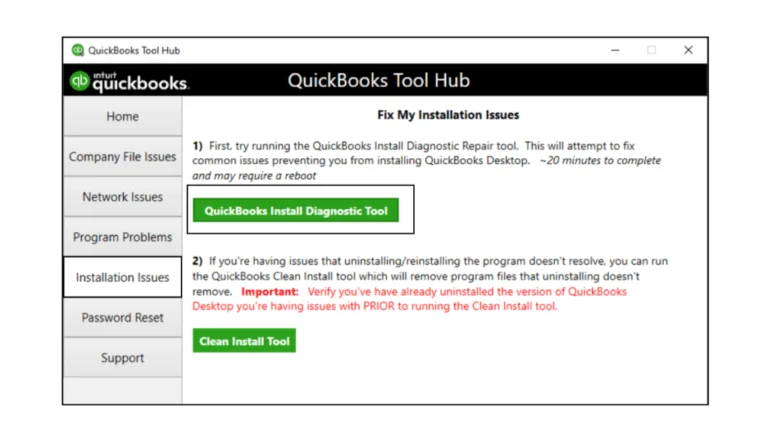
The QuickBooks Install Diagnostic Tool can automatically repair issues related to Microsoft components required for QuickBooks.
- Download the QuickBooks Tool Hub.
- Install and open the Tool Hub.
- Click Installation Issues.
- Select QuickBooks Install Diagnostic Tool.
- Allow the tool to scan and repair system issues.
- Restart your computer after the process completes.
2. Repair MSXML Component
If MSXML components are damaged, QuickBooks installation may fail. Repairing MSXML can resolve the issue.
For Windows 10 or 11:
- Click the Start button.
- Type msiexec.exe /fvaum “D:\QBOOKS\msxml.msi”.
- Press Enter.
Replace the drive letter if your QuickBooks installation CD uses a different drive.
3. Repair Microsoft .NET Framework
QuickBooks relies on Microsoft .NET Framework to run properly. If it becomes corrupted, installation errors may occur.
- Open the Windows Control Panel.
- Click Programs and Features.
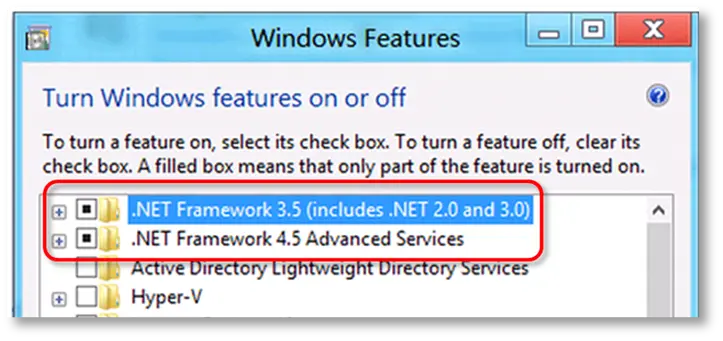
- Select Turn Windows Features On or Off.
- Locate .NET Framework 3.5 and .NET Framework 4.5.
- Disable and re-enable these components.
- Restart your computer.
4. Install Latest Windows Updates
Outdated Windows components may cause QuickBooks installation errors.
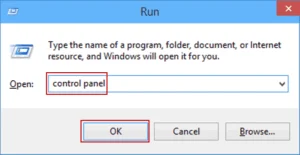
- Press Windows + R.
- Type Control Panel.
- Select Windows Update.
- Click Check for Updates.
- Install all available updates.
- Restart your computer.
5. Modify Windows Security Policies
Windows security policies may block QuickBooks installation.
- Press Windows + R.
- Type gpedit.msc.
- Open Administrative Templates.
- Navigate to Windows Components → Windows Installer.
- Disable the Prohibit User Installs option.
- Restart the installation.
6. Install QuickBooks in Safe Mode
Safe Mode allows QuickBooks installation without interference from background applications.
- Press Windows + R.
- Type msconfig.
- Go to the Boot tab.
- Select Safe Boot.
- Restart your computer.
- Install QuickBooks Desktop.
7. Use Selective Startup Mode
Selective startup prevents unnecessary services from interfering with QuickBooks installation.
- Press Windows + R.
- Type msconfig.
- Select Selective Startup.
- Disable non-Microsoft services.
- Restart the computer.
- Install QuickBooks again.
8. Restart Windows Installer Service
- Open Control Panel.
- Click Administrative Tools.
- Select Services.
- Locate Windows Installer.
- Restart the service.
Tips to Prevent QuickBooks Installation Error 1603
You can avoid QuickBooks installation errors by following these best practices.
- Keep Windows updated regularly.
- Always install the latest version of QuickBooks Desktop.
- Ensure Microsoft .NET Framework is working correctly.
- Temporarily disable antivirus software during installation.
- Maintain sufficient disk space on your system.
- Regularly update Microsoft components like MSXML and Visual C++.
Need Help Fixing QuickBooks Error 1603?
If you continue to face installation issues, professional assistance may be required.
Our certified QuickBooks specialists provide 24/7 support for:
- QuickBooks installation errors
- Company file repair
- Payroll update issues
- Data migration and recovery
Chat with our QuickBooks experts now
Frequently Asked Questions
What is QuickBooks Error 1603?
QuickBooks Error 1603 is an installation-related error that occurs when QuickBooks Desktop fails to install or update due to damaged Windows components or incomplete installation files.
Why does QuickBooks Error 1603 occur?
This error usually occurs because of corrupted Microsoft .NET Framework, damaged MSXML components, Windows registry issues, or antivirus interference.
Can damaged Windows components cause Error 1603?
Yes. QuickBooks depends on Windows components such as .NET Framework, MSXML, and Visual C++. If these components are damaged, QuickBooks installation may fail.
Is QuickBooks Error 1603 related to payroll updates?
Sometimes. This error may occur during payroll updates if required QuickBooks components fail to install correctly.
Conclusion
QuickBooks Error 1603 can interrupt the installation or update process and prevent QuickBooks from running correctly. However, by repairing Windows components, running the QuickBooks Install Diagnostic Tool, and updating system settings, you can resolve the issue quickly.
If the problem continues, contacting QuickBooks experts can help restore your QuickBooks installation safely and efficiently.