
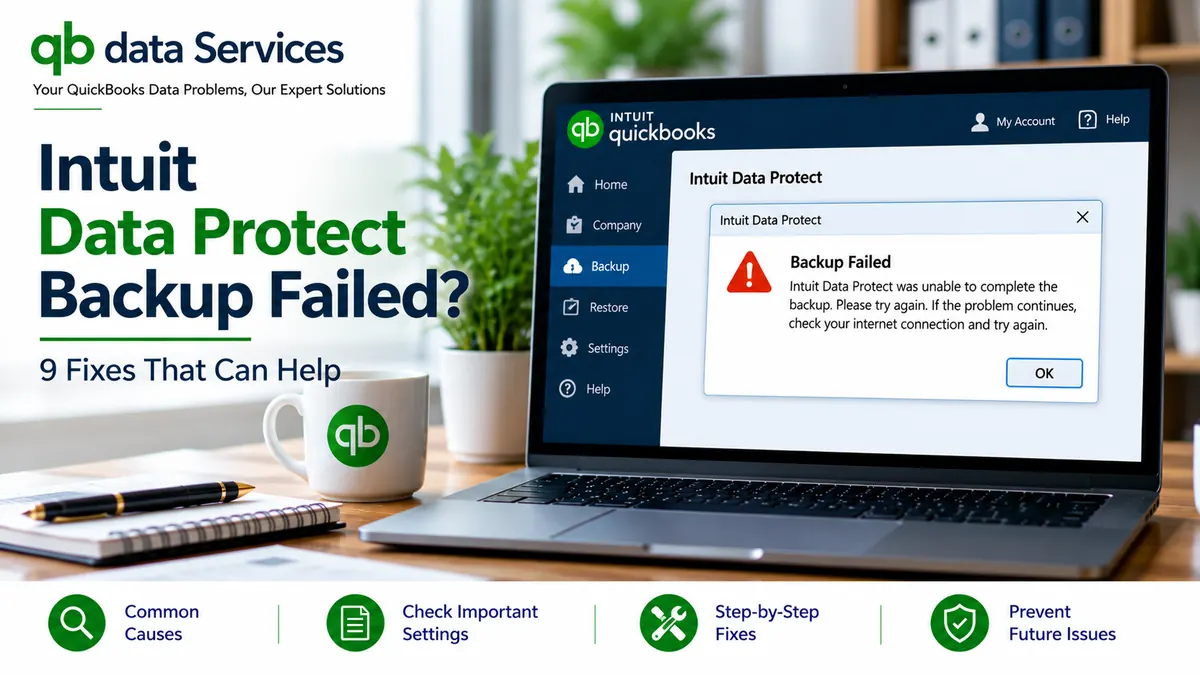
When Intuit Data Protect reports that a backup has failed, it can leave your QuickBooks Desktop company file without a recent backup. You might see a firewall or connection error, receive a backup failure notification, or find that a scheduled backup never finishes.
Several issues can cause this problem, including firewall restrictions, internet connectivity problems, insufficient storage, outdated software, background service failures, and company file access issues.
This guide explains how to troubleshoot the Intuit Data Protect backup failed error, identify the likely cause, and create a backup using an alternative method while you investigate the problem.
Quick Fixes for Intuit Data Protect Backup Failures
Before changing firewall settings or reinstalling software, take these initial steps:
- Create a local backup: Open QuickBooks Desktop and select File > Back Up Company > Create Local Backup. Follow the prompts to save a backup to a separate location.
- Check the error message: Note whether the failure mentions a firewall, connection, storage limit, or incomplete backup.
- Run Data Protect diagnostics: If the Data Protect tray icon is available, right-click it, select About, press Ctrl + F2, and choose Run Diagnostics, as described in the source article.
- Check storage space: Confirm that the backup destination has sufficient available space and that your Data Protect storage quota has not been reached.
- Update the software: Check for available QuickBooks Desktop and Data Protect updates.
Important: Confirm that your local backup completes successfully. Where possible, copy it to a separate external drive or another secure location. Do this before attempting repairs or reinstallations.
Why Does Intuit Data Protect Say the Backup Failed?
The cause of a failed backup depends on the error message, the computer’s configuration, and whether the failure affects manual backups, scheduled backups, or both.
Common causes include:
- Windows Firewall or third-party security software blocking Data Protect.
- An unstable internet connection or network configuration issue.
- A full Data Protect backup storage quota.
- Insufficient free disk space on the computer.
- A company file that is open, inaccessible, or potentially damaged.
- A Data Protect background service that is not running correctly.
- Outdated or damaged QuickBooks Desktop or Data Protect components.
- A computer that is asleep or unavailable when a scheduled backup starts.
- Permissions or access problems involving a company file stored on a network.
- An inactive subscription, where the service requires an active subscription.
Identifying the circumstances surrounding the failure can help you choose the appropriate troubleshooting method instead of changing multiple settings unnecessarily.
Before Troubleshooting Intuit Data Protect
Complete these preparations before making changes to your QuickBooks installation or security settings.
- Sign in to Windows using an administrator account if administrative access is required.
- Record the exact error message and any displayed error code.
- Create and verify a local company file backup if possible.
- Check whether other users or computers are accessing the company file.
- Confirm that the computer has an active internet connection.
- Check your Data Protect subscription status if the service is subscription-based for your account.
These checks can help protect your company data and make it easier to identify the underlying problem.
How to Fix Intuit Data Protect Backup Failed
Fix 1: Update QuickBooks Desktop and Intuit Data Protect
Outdated software can contribute to compatibility problems and backup failures. Check for updates before attempting more advanced troubleshooting.
- Open QuickBooks Desktop.
- Go to Help > Update QuickBooks Desktop.
- Open the Update Now tab.
- If appropriate, select Reset Update, then click Get Updates.
- Wait for the update process to finish and restart QuickBooks if prompted.
- Check Data Protect for available updates using its available interface or the instructions provided by Intuit.
- Run a test backup to determine whether the problem has been resolved.
The exact update options may vary by QuickBooks Desktop version. If the update process fails or becomes unresponsive, troubleshoot that issue separately before repeatedly attempting the backup.
Fix 2: Check Windows Firewall and Security Software
A firewall or security application may prevent Intuit Data Protect components from communicating with the required online services. This can cause a connection-related backup failure.
To investigate the issue:
- Open Windows Search and look for Windows Defender Firewall.
- Open the option for allowing an app or feature through Windows Defender Firewall.
- If necessary, select Change settings and use the option to allow another app.
- Locate the relevant Data Protect program files in their installed location.
- Check the application rules for the Data Protect components used by your installation.
- If you use third-party security software, check its application permissions and security logs as well.
- Run Data Protect diagnostics and test the backup again.
The source article identifies these executable names as components to investigate:
IntuitDataProtect.exeIBuEngHost.exeQBIDPServices.exe
The installed components and their locations can vary. Confirm the correct file paths and program identities before adding firewall rules. Only allow legitimate QuickBooks and Intuit components that you have verified.
Security note: Avoid disabling your firewall or antivirus protection permanently. Do not create broad firewall exceptions or open additional ports without confirming that they are required for your specific installation. If you are using a managed business network, ask your IT administrator to review the relevant firewall logs and rules.
Fix 3: Run the Intuit Data Protect Diagnostic Tool
The diagnostic tool can help identify connectivity or security issues affecting Data Protect.
- Locate the Intuit Data Protect icon in the Windows system tray.
- Right-click the icon and select About, if that option is available.
- Press Ctrl + F2 to open the diagnostic tool, as described in the source article.
- Select Run Diagnostics.
- Allow the diagnostic process to finish.
- Review the results and follow any relevant recommendations.
If the diagnostic results identify a firewall or connectivity problem, investigate the network and security settings before repeating the backup.
You should also check whether websites load normally in your browser. If your computer uses a VPN or proxy, review its configuration with your network administrator before changing it.
Fix 4: Check Backup Storage and Available Disk Space
Backups may fail when the available storage quota is exhausted or the destination drive does not have enough free space.
Follow these steps:
- Open Intuit Data Protect using its available application interface.
- Check the backup storage usage and determine whether the quota has been reached.
- Review older backups and identify files that you no longer need to retain.
- Download or copy important backups to another secure location before deleting them.
- Review the backup selection settings and remove unnecessary items only when you are certain they are not required.
- Check the free space on the computer and the relevant backup destination.
- Run the backup again.
Do not delete older backups simply to make room without checking your retention requirements. Keeping multiple usable backup copies can be important if a recent backup is incomplete or cannot be restored.
Fix 5: Check Company File Access and Storage Location
Intuit Data Protect may encounter problems when it cannot access the company file reliably. This can happen when the file is being used by another computer, stored on a network location, or affected by file or folder permissions.
Check the following items:
- Company file access: Determine whether another user or process is accessing the company file during the backup.
- File and folder permissions: Confirm that the account running the backup has the necessary access.
- Network location: Check that the server or network drive is available and that the file can be accessed normally.
- Disk format: If the backup requirements for your configuration specify NTFS, verify the file system of the relevant drive through File Explorer.
- File integrity: If you suspect company file damage and QuickBooks can open it, use the appropriate Verify Data option.
For a company file stored on a server, avoid moving or renaming the live file as an initial troubleshooting step. Network configurations and file paths should be changed only after considering the effects on other users and connected workstations.
If QuickBooks reports data problems, investigate them separately. Data Protect backup failures and company file corruption are not necessarily the same issue.
Fix 6: Troubleshoot Scheduled Backup Failures
If a manual backup works but a scheduled backup fails, the computer may not be available when the backup is due to run.
Review these settings:
- Check whether the computer is asleep, shut down, or disconnected at the scheduled backup time.
- Review Windows power settings and determine whether sleep settings are interfering with the backup schedule.
- Confirm that the relevant Windows account and Data Protect components have the permissions they need.
- Choose a backup time when the company file and computer are expected to be available.
- Review the Data Protect scheduling options and verify that the correct files are selected.
- Run a manual backup to confirm whether the problem affects scheduled backups only.
The available scheduling options can depend on your software version and configuration. Do not assume that keeping QuickBooks open or changing a particular preference will resolve every scheduled backup issue.
Fix 7: Check the Intuit Data Protect Background Service
Intuit Data Protect relies on background components to perform backup operations. If a required component is not running correctly, the tray icon may disappear or backups may stop working.
To investigate:
- Press Ctrl + Shift + Esc to open Task Manager.
- Open the Details tab if it is available in your version of Windows.
- Look for the Data Protect components associated with your installation, including
IBuEngHost.exewhere applicable. - Review whether the expected process is running.
- If the process is missing or repeatedly stops, review the relevant service status, Windows event logs, and installation information.
The source article notes that IBuEngHost.exe may be expected to run under the SYSTEM account. However, process names and account details alone do not prove that an installation is damaged. Confirm the expected configuration for your version before making changes.
If the service continues to fail, use Intuit’s supported repair or reinstall instructions rather than deleting program files or changing service permissions manually.
Fix 8: Repair QuickBooks Desktop or Reinstall Damaged Components
If updates, network checks, and storage checks do not resolve the problem, the QuickBooks installation or related components may need repair.
Before proceeding, verify that you have a usable backup and that you understand the effect of repairing or reinstalling the software on your computer.
- Open QuickBooks Tool Hub if it is installed.
- Select the Program Problems section.
- Run Quick Fix my Program, if available.
- If the problem persists, open the Installation Issues section.
- Use the relevant installation diagnostic or repair option available for your version.
- If repair does not resolve the issue, consult the official instructions for reinstalling QuickBooks Desktop and its related components.
- After completing the repair, open QuickBooks and test Data Protect again.
A clean reinstall should be a later troubleshooting step, not the first response to a backup failure. If your environment uses a shared company file or multiple workstations, plan the repair carefully to avoid disrupting other users.
Fix 9: Use an Alternative Backup Method While Troubleshooting
If Intuit Data Protect continues to fail, you can use a supported local backup method while investigating the original problem.
Create a Local QuickBooks Desktop Backup
- Open the company file in QuickBooks Desktop.
- Go to File > Back Up Company > Create Local Backup.
- Select the local backup option and follow the on-screen instructions.
- Choose a suitable destination with sufficient free space.
- Complete the backup and confirm that the file has been created.
Keep a Second Copy
Copy the completed backup to a separate secure location, such as an external drive or an approved business storage service. Make sure the second copy is stored independently of the original computer whenever possible.
A second copy can help protect against a computer failure or an issue affecting the primary backup location. Follow your organization’s data security and retention requirements when selecting storage.
Remember that a backup file is useful only if it can be restored. Do not overwrite your live company file when testing a backup.
How to Check Whether Your QuickBooks Backup Works
A backup process that appears to complete does not automatically guarantee that the backup can be restored. Periodically test your backups using a separate location.
- Locate the backup file and check that its date and file size appear reasonable.
- Use the appropriate QuickBooks restore workflow to restore a copy to a separate folder.
- Do not overwrite your live company file during the test.
- Open the restored company file in the appropriate QuickBooks version.
- Check a few recent transactions or other records to confirm that the restored data is present.
- Record the result and investigate any restore errors.
If the backup cannot be restored or QuickBooks reports a file-format problem, preserve the original backup and investigate the error before deleting or replacing other copies.
Does Intuit Data Protect Work With QuickBooks Online?
Intuit Data Protect is associated with QuickBooks Desktop backup workflows. QuickBooks Online uses a different cloud-based service model, so QuickBooks Desktop Data Protect instructions do not apply directly to it.
If you use QuickBooks Online and need a separate copy of your accounting data, review the data export and backup options available for your subscription and region. Confirm which records are included before relying on an export as a complete backup.
How to Prevent Intuit Data Protect Backup Errors
These practices can reduce the likelihood of recurring backup problems:
- Keep QuickBooks Desktop and related components updated.
- Check backup history regularly rather than waiting for a failure notification.
- Maintain sufficient space in the backup destination.
- Review Data Protect storage usage and backup selections periodically.
- Ensure that the computer and required network resources are available during scheduled backups.
- Review firewall rules after security software or network configuration changes.
- Keep additional backup copies in a separate, secure location.
- Test restoration periodically to confirm that backups remain usable.
- Investigate repeated failures rather than repeatedly restarting the same unsuccessful backup.
When Should You Seek QuickBooks Backup Assistance?
Consider seeking qualified technical assistance if the backup continues to fail after basic troubleshooting, especially when:
- Both Data Protect and local backups fail.
- QuickBooks reports company file damage or cannot open the company file.
- Network permissions or server access are preventing the backup.
- The Data Protect service repeatedly stops or fails to initialize.
- Your available backup copies are old or cannot be restored.
- You are unsure how to repair the installation without affecting the live company file.
Before making significant changes, preserve any available company file and backup copies. A qualified QuickBooks technician can help distinguish a backup-service problem from an installation, network, or company file issue.
Frequently Asked Questions
Why does Intuit Data Protect say my backup failed?
Possible causes include firewall restrictions, an unstable internet connection, a full backup storage quota, insufficient disk space, an unavailable background component, or a company file access problem. Check the exact error message to determine which troubleshooting steps are most relevant.
What does the Intuit Data Protect firewall or connection error mean?
It generally indicates that Data Protect is having difficulty communicating with the required online services. Check your internet connection, review firewall and security software rules, and run the available Data Protect diagnostic tool.
How do I run Intuit Data Protect diagnostics?
If the Data Protect tray icon and diagnostic options are available, right-click the icon, select About, press Ctrl + F2, and choose Run Diagnostics. The available steps may vary by version.
Will I lose my QuickBooks data if Data Protect backups keep failing?
A failed backup does not necessarily damage the live company file, but it can leave you without a recent recovery copy. Create a local backup as soon as possible and copy it to another secure location.
Can I back up QuickBooks Desktop without Intuit Data Protect?
Yes. QuickBooks Desktop provides a local backup workflow through File > Back Up Company > Create Local Backup. Follow the prompts and verify that the backup completes successfully.
Why do scheduled backups fail when manual backups work?
The computer may be asleep or unavailable at the scheduled time, or the backup process may lack the required permissions or access to the company file. Review power settings, scheduling options, network access, and backup history.
Does Intuit Data Protect work with QuickBooks Online?
Intuit Data Protect is associated with QuickBooks Desktop rather than the standard QuickBooks Online workflow. QuickBooks Online users should review the export and data protection options available for their subscription.
How can I confirm that my QuickBooks backup can be restored?
Restore a copy to a separate location using the appropriate QuickBooks restore workflow. Open the restored file and check that expected records are present. Never overwrite the live company file when testing a backup.
Conclusion
The Intuit Data Protect backup failed error can result from several different issues, including security restrictions, connectivity problems, storage limits, scheduling conflicts, and damaged software components.
Start by creating a local backup, recording the exact error message, and checking your internet connection, storage space, and software updates. Then work through the relevant troubleshooting steps one at a time.
Most importantly, do not rely on a backup until you have confirmed that it completed successfully. Maintain a separate copy of important backups and test restoration periodically so that your QuickBooks accounting records remain recoverable when you need them.
For more QuickBooks Desktop troubleshooting guidance, visit QB Data Services.