
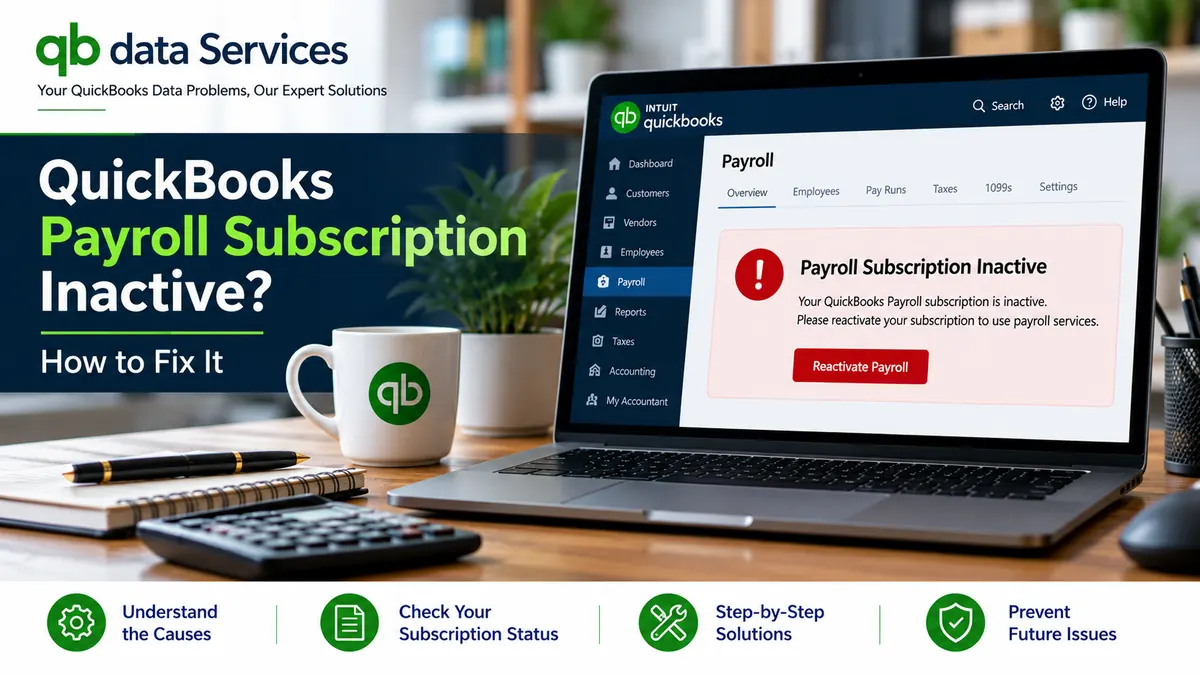
Are you trying to process employee payments when QuickBooks displays a message saying your payroll subscription is inactive? This problem can interrupt payroll processing, prevent access to current payroll tax updates, and affect services such as direct deposit.
If your QuickBooks payroll subscription is inactive, the cause may be an expired payment method, a failed renewal, an incorrect service key, an account synchronization issue, or an unsupported version of QuickBooks Desktop.
In some cases, your billing account may already show an active subscription even though QuickBooks continues to display an inactive status. This can happen when the application has not refreshed its subscription information or when the payroll service key needs attention.
This guide explains how to troubleshoot an inactive payroll subscription in QuickBooks Desktop and QuickBooks Online, restore access where possible, and prepare for payroll processing without making unnecessary changes to your accounting records.
Quick Answer: How to Fix an Inactive QuickBooks Payroll Subscription
If QuickBooks says your payroll subscription is inactive, start with these checks:
- Check your subscription: Confirm whether your payroll plan is active, expired, cancelled, or past due.
- Review billing: Update an expired or declined payment method and resolve outstanding billing issues.
- Reactivate payroll: Use the subscription or billing settings available in your QuickBooks version.
- Validate the service key: In QuickBooks Desktop, check the payroll service key if billing already shows an active subscription.
- Update QuickBooks: Install available program updates and download the latest applicable payroll tax table.
- Check account access: Make sure you are using the correct QuickBooks account and company file.
- Allow time for activation: Subscription changes may take time to appear in QuickBooks.
Menu names and available options can differ according to your QuickBooks product, payroll plan, and software version. Follow the options displayed in your account.
What Happens When a QuickBooks Payroll Subscription Becomes Inactive?
An inactive subscription does not necessarily mean that your historical payroll records have disappeared. You may still be able to open your company file and review previous payroll transactions, depending on your product and account access.
However, an inactive payroll service can affect important payroll functions, including:
- Creating paychecks with automatic payroll tax calculations.
- Downloading applicable payroll tax table updates.
- Using direct deposit services.
- Accessing supported electronic payroll tax filing and payment services.
The exact restrictions depend on your payroll product and subscription status.
Important: An inactive subscription does not automatically extend tax filing or payment deadlines. Check applicable federal and state requirements and contact your accountant if payroll processing or tax payments may be delayed.
Why Is My QuickBooks Payroll Subscription Inactive?
Several issues can cause QuickBooks to display an inactive payroll subscription message.
Payment Failed or the Card Expired
Your payroll renewal may have failed because your credit or debit card expired, was replaced, or was declined by the payment provider. An outstanding balance can also prevent the subscription from renewing.
The Payroll Subscription Was Cancelled
The subscription may have been cancelled intentionally or following repeated billing problems. Check the subscription status before attempting to reactivate it.
The Payroll Service Key Is Missing or Incorrect
QuickBooks Desktop uses payroll service information to connect the company file with the payroll service. If the service key is missing or incorrect, QuickBooks may display an inactive status even when your account appears active.
Subscription Information Has Not Synchronized
Sometimes a billing change has been completed, but the application has not yet updated its subscription status. Closing and reopening QuickBooks, signing in again, and running the appropriate payroll update may help refresh the information.
You Are Using the Wrong QuickBooks Account
If your business has multiple QuickBooks logins, the subscription may be associated with a different email address. This can happen when a former employee originally purchased or managed the payroll service.
QuickBooks Desktop Needs an Update
An outdated installation or payroll tax table can contribute to payroll service problems. Check whether your QuickBooks Desktop release is still supported and whether updates are available for your version.
Internet or Security Software Problems
Payroll services require appropriate connectivity. Incorrect computer date and time settings, internet problems, or firewall restrictions may prevent QuickBooks Desktop from communicating with the payroll service.
The QuickBooks Installation Is Damaged
If billing, account access, and service key information are correct but payroll still does not work, the installation may require troubleshooting or repair.
Before You Fix the Inactive Payroll Subscription
Before changing payroll settings, prepare the following information:
- Administrator access: Sign in using an account with the permissions required to manage the subscription.
- Payroll plan details: Identify your QuickBooks payroll product and plan.
- Billing information: Have the current payment method and relevant subscription details available.
- Payroll service key: If you use QuickBooks Desktop, locate the service key associated with your payroll subscription.
- Company file backup: Back up your QuickBooks Desktop company file before performing significant troubleshooting or changing files.
Once you have this information, follow the troubleshooting steps for your version of QuickBooks.
How to Fix QuickBooks Payroll Subscription Inactive in QuickBooks Desktop
Work through the following steps in order. After each major correction, check whether the payroll subscription status has changed.
Fix 1: Check the Payroll Subscription Status
First, determine whether QuickBooks Desktop actually identifies the payroll service as inactive.
- Open your QuickBooks Desktop company file.
- Go to Employees > Payroll Center.
- Open the Payroll tab and review the subscription status.
- Navigate to Employees > My Payroll Service > Manage Service Key, where available.
- Check the status displayed beside the payroll service.
If the service is marked inactive, continue to the billing checks below. If it shows Active but payroll remains unavailable, investigate the service key, updates, and synchronization.
Fix 2: Check Billing and Reactivate Payroll
If the subscription expired or a renewal payment failed, correcting the billing issue may restore the service.
- In QuickBooks Desktop, navigate to Employees > My Payroll Service > Account/Billing Information, where available.
- Sign in using the account associated with the payroll purchase.
- Review the subscription status and payment information.
- Update the payment method if the existing card has expired or been declined.
- Resolve any outstanding billing issue shown in the account.
- Select the available Resubscribe or Reactivate option and follow the instructions.
- Sign out of the billing page and close QuickBooks.
- Reopen QuickBooks and check the subscription status again.
Activation may not appear immediately. Allow time for the subscription information to update before repeating the process.
Fix 3: Revalidate the Payroll Service Key
If your billing account shows an active subscription but QuickBooks Desktop still reports that payroll is inactive, check the service key.
- Open QuickBooks Desktop.
- Go to Employees > My Payroll Service > Manage Service Key.
- Select the relevant payroll service and click Edit, if available.
- Check the service key against the information associated with your subscription.
- Correct the key if necessary.
- Follow the prompts to save the changes.
- If QuickBooks asks whether to open Payroll Setup, follow the appropriate instructions for your version.
- Run the payroll update if prompted and check the status again.
If QuickBooks displays a service key error, note the exact error code and message. Use the corresponding troubleshooting instructions rather than repeatedly entering different keys.
Fix 4: Update QuickBooks Desktop and the Payroll Tax Table
Outdated program files or payroll updates may contribute to payroll problems. Check for available updates before proceeding to more advanced troubleshooting.
Update QuickBooks Desktop
- Open QuickBooks Desktop.
- Go to Help > Update QuickBooks Desktop.
- Open the Update Now tab.
- Use the Reset Update option if appropriate for your update problem.
- Click Get Updates.
- When the process finishes, restart QuickBooks if prompted.
Download Payroll Updates
- Open QuickBooks Desktop.
- Navigate to Employees > Get Payroll Updates.
- Select the available option to download the complete update, if shown.
- Start the update and wait for it to finish.
- Return to the Payroll Center and check the subscription status.
If the update fails, record the error code and troubleshoot that specific error. An update failure may need to be resolved separately from the subscription billing issue.
Fix 5: Verify the Correct Account and Company File
When the payroll subscription belongs to another account, QuickBooks may not recognize the service you expect to use.
- Confirm which email address was used to purchase the payroll subscription.
- Sign in with the account associated with that subscription.
- If the original payroll administrator has left the business, determine who currently controls the account.
- Verify that you opened the correct QuickBooks Desktop company file.
- Check whether the company file was recently copied, restored, or moved to another computer.
If the former employee’s account is the only account with subscription access, you may need to contact the appropriate QuickBooks support channel to update the payroll administrator or account contact. Be prepared to provide the requested verification of identity and business ownership.
Fix 6: Check the Software Version, Computer Clock, Internet, and Firewall
If billing and service key information appear correct, check the computer and software environment.
- QuickBooks version: Verify whether your QuickBooks Desktop release remains supported for the payroll service you use.
- Date and time: Confirm that your computer’s date, time, and time zone are correct.
- Internet connection: Check that the computer can access the internet reliably.
- Firewall and security software: Review whether security software is blocking QuickBooks from communicating with its services.
Do not disable security protection permanently. If you suspect a firewall issue, follow appropriate troubleshooting instructions for your software and network configuration.
Fix 7: Rename the Paysub.ini File Only If Appropriate
The Paysub.ini file may be involved in some QuickBooks Desktop payroll troubleshooting procedures. Renaming it is an advanced workaround, not the first step to take when a subscription becomes inactive.
Before attempting this procedure, complete the billing, service key, and update checks. Make sure you have a backup and understand which QuickBooks installation and company file you are troubleshooting.
- Close QuickBooks Desktop.
- Back up your company file.
- Use File Explorer to locate the relevant Paysub.ini file.
- Follow a trusted procedure for your QuickBooks version to rename the file rather than deleting it.
- Reopen QuickBooks and follow the applicable payroll update instructions.
- Check whether the payroll service status has changed.
If you cannot confidently identify the correct file, do not rename files at random. Seek assistance from a qualified QuickBooks support professional.
Fix 8: Repair QuickBooks Desktop
If the subscription is valid and the previous checks have not resolved the problem, your QuickBooks installation may need repair.
- Close QuickBooks Desktop.
- Open the QuickBooks Tool Hub if it is installed for your version.
- Use the available program repair tool, such as Quick Fix my Program.
- If the issue continues, review the installation troubleshooting options available in the Tool Hub.
- Reopen QuickBooks and check the payroll subscription status.
If the company file itself appears damaged, investigate the appropriate company-file diagnostic procedures. Make a backup before using repair tools or making changes to the file.
How to Fix an Inactive Payroll Subscription in QuickBooks Online
QuickBooks Online uses account-based subscription management. Start by checking the payroll subscription and billing information rather than changing Desktop service key settings.
Step 1: Check Subscriptions and Billing
- Sign in to QuickBooks Online using an account with the required administrative permissions.
- Open Settings.
- Select Subscriptions and billing, if available in your account.
- Locate the payroll subscription.
- Check whether the status is active, cancelled, past due, or otherwise restricted.
If the subscription is inactive or past due, continue to the billing checks.
Step 2: Correct the Payment Problem and Resubscribe
- Open the payroll subscription details.
- Review the payment method and billing status.
- Update expired or declined payment information as required.
- Resolve any outstanding billing issue shown in the account.
- Choose the available Resubscribe option if the account offers it.
- Follow the on-screen instructions to complete the process.
- Refresh the subscription page and check the status again.
If your account does not offer a reactivation option, or the payment is complete but payroll remains inactive, contact the appropriate QuickBooks support channel for account-specific assistance.
Step 3: Rule Out a Browser Problem
If billing shows that payroll is active but the payroll interface remains unavailable, test whether the issue is related to your browser.
- Open QuickBooks Online in a private or incognito browser window.
- Sign in to your account.
- Open the payroll section and check its status.
- If payroll works in the private window, clear the browser cache and cookies as appropriate.
- Sign in again and verify that the problem has been resolved.
If the problem continues across browser sessions, return to the subscription status and contact support if necessary.
Step 4: Review Payroll Information After Reactivation
Once the subscription is active again, review your payroll information before processing the next pay run.
- Open the Payroll section and review employee records.
- Check employee pay details and applicable deductions.
- Review the available tax information and payroll settings.
- Verify the bank account and direct deposit settings where applicable.
- Check whether any payroll actions remain incomplete or require attention.
Do not assume that every payroll service has resumed simply because the subscription status says Active. Confirm that the features you need are available before processing payroll.
What Should You Do If Payday Is Today?
An inactive payroll subscription can create an urgent problem when employees are expecting to be paid. Address the subscription issue promptly while avoiding rushed accounting or tax corrections.
Resolve the Subscription Issue First
Check the billing status, correct any payment problem, and follow the reactivation procedure for your QuickBooks version. Activation may take time, so do not wait until the last minute to investigate subscription warnings.
Do Not Guess Payroll Tax Withholding
Manually entering paychecks without the correct tax calculations can create errors in employee payments, payroll liabilities, and tax reporting. Consult your accountant or a qualified payroll professional before using an alternative process.
Communicate Potential Delays
If a delay appears likely, communicate with affected employees as appropriate and review the applicable wage-payment requirements for your jurisdiction.
Check Payroll Tax Deadlines
A subscription problem does not automatically change payroll tax deposit or filing deadlines. Contact your accountant to confirm the deadlines and obligations that apply to your business.
What to Check After QuickBooks Payroll Becomes Active Again
After restoring the subscription, complete these checks before your next payroll run.
- Download the applicable payroll updates in QuickBooks Desktop, if required.
- Check for incomplete or stuck payroll transactions.
- Confirm that direct deposit services are available if your business uses them.
- Review employee deductions and payroll tax information.
- Verify the bank account used for payroll transactions.
- Check whether any pending payroll actions need to be completed.
- Compare the next payroll run with the relevant employee and accounting records before submitting it.
If payroll calculations or employee records appear incorrect, resolve the discrepancy before finalizing the pay run.
How to Prevent Your QuickBooks Payroll Subscription from Becoming Inactive
Regular account maintenance can help prevent billing and subscription issues from disrupting payroll.
- Keep payment details current: Update expired cards and review billing notifications promptly.
- Maintain account access: Use an appropriate business email and ensure that authorized administrators can access the subscription.
- Store service key information securely: Keep the relevant QuickBooks Desktop payroll service information accessible to authorized staff.
- Update QuickBooks: Install applicable program updates and payroll tax table updates.
- Check software support: Confirm that your QuickBooks Desktop release remains supported for your payroll service.
- Review billing messages: Investigate renewal warnings and failed-payment notifications promptly.
- Check payroll before payday: Verify the subscription status several days before a scheduled payroll run.
These precautions can help you identify a problem early and reduce the risk of an unexpected interruption.
When to Contact QuickBooks Support or a Payroll Professional
Some inactive subscription problems cannot be resolved through local troubleshooting alone. Account restrictions, billing holds, administrator changes, and service-side issues may require assistance from QuickBooks support.
Consider requesting help if:
- Your billing account shows an active subscription but QuickBooks continues to report an inactive service.
- You cannot access the account that originally purchased payroll.
- The service key is rejected or cannot be validated.
- The subscription remains inactive after the billing issue has been corrected.
- QuickBooks Desktop continues to display payroll errors after updating and repairing the installation.
- You are unsure how to correct payroll records after a service interruption.
QB Data Services provides QuickBooks-related troubleshooting resources to help users understand and investigate software problems.
Need help with a QuickBooks payroll issue? Visit QB Data Services to explore our QuickBooks support information and troubleshooting guides.
Frequently Asked Questions
Why does QuickBooks say my payroll subscription is inactive even though I paid?
The subscription information may not have synchronized, or QuickBooks Desktop may not recognize the payroll service key. Check your billing account, sign out and back in where appropriate, validate the service key in Desktop, and run the applicable payroll update. If the issue continues, contact QuickBooks support.
How do I reactivate my QuickBooks payroll subscription?
In QuickBooks Desktop, open the available Account/Billing Information option under My Payroll Service, sign in, and follow the Resubscribe or Reactivate instructions if displayed. In QuickBooks Online, open Settings and Subscriptions and billing, locate payroll, and use the available reactivation option.
How long does it take for QuickBooks payroll to become active again?
Activation may not appear immediately after a payment or subscription change. The source troubleshooting guide recommends allowing up to 24 hours. If the status remains inactive after that, review the billing information, service key where applicable, and payroll updates, or contact support.
Will I lose my payroll data if my subscription becomes inactive?
An inactive subscription does not necessarily mean that historical payroll records have been deleted. However, access to payroll services and functions may be restricted. After reactivation, review your employee records, payroll settings, and pending payroll actions.
Can I run payroll while my subscription is inactive?
Payroll functionality may be restricted, including automatic tax calculations and direct deposit. Do not guess tax withholding or use an alternative payroll process without checking the implications. Consult your accountant or a qualified payroll professional before proceeding.
Why can I not see Manage Service Key or Account/Billing Information?
You may lack the required administrative permissions, or you may have opened a company file or account that is not associated with the subscription. Confirm your login details, permissions, and company file. Menu options can also vary by QuickBooks version and payroll plan.
Can an outdated QuickBooks Desktop version stop payroll from working?
An unsupported QuickBooks Desktop release may no longer be eligible for the payroll services you need. Check the support status of your version and review the available upgrade options if necessary.
What should I do if the person who managed the payroll account has left the company?
Contact the appropriate QuickBooks support channel to ask about changing the payroll administrator or primary account contact. Be prepared to provide the requested verification of your identity and business ownership.
Conclusion
If your QuickBooks payroll subscription is inactive, start by identifying whether the problem is related to billing, account access, the Desktop service key, software updates, or the payroll connection.
For QuickBooks Desktop, check the Payroll Center, review billing details, validate the service key when necessary, and install applicable updates. For QuickBooks Online, review Subscriptions and billing, correct any payment issue, and test the browser if the account already shows an active subscription.
After reactivation, verify your payroll settings and pending transactions before processing employee payments. If payday or a tax deadline is approaching, consult your accountant or payroll professional rather than guessing at calculations or deadlines.
For more QuickBooks troubleshooting resources, visit QB Data Services.