
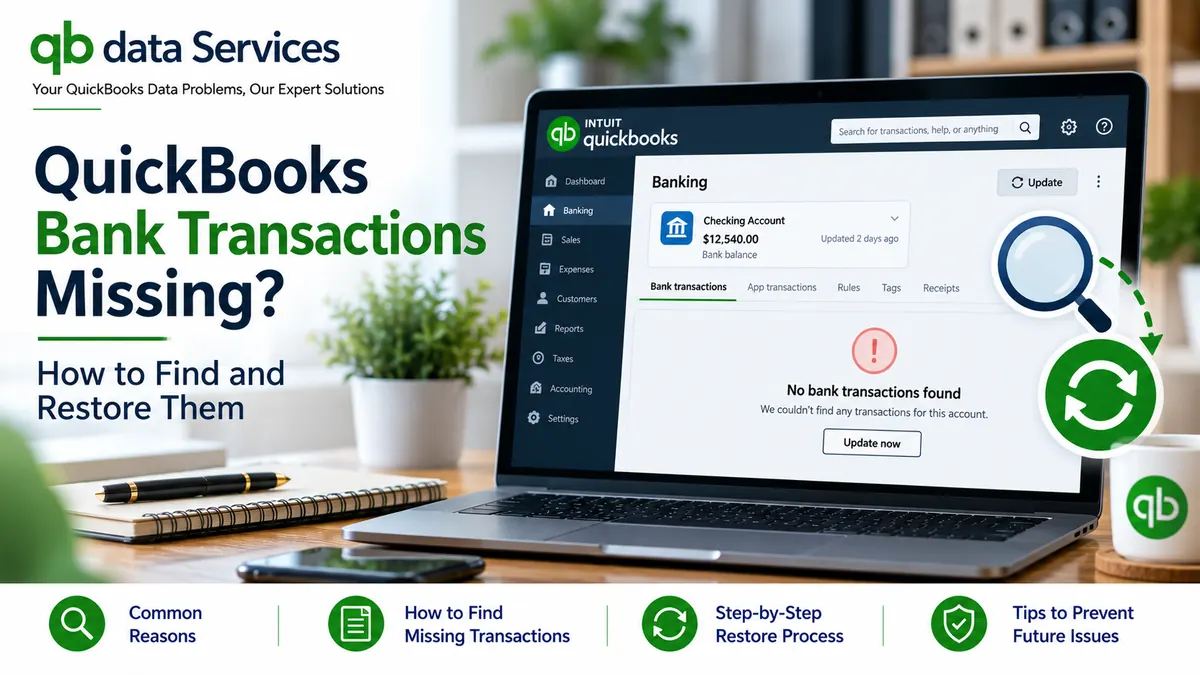
Have you opened QuickBooks and discovered that some of your bank transactions are missing? Perhaps a recent deposit is not appearing in your bank feed, several payments have disappeared from the transaction list, or a previously recorded expense is no longer visible in your reports.
When QuickBooks bank transactions are missing, it does not necessarily mean that your financial data has been permanently deleted. Transactions may have been excluded from the bank feed, matched with existing entries, automatically categorized, assigned to the wrong account, or hidden by a date filter. In other cases, the bank connection may not have downloaded the transactions at all.
The correct solution depends on where the transactions are missing and whether you use QuickBooks Online or QuickBooks Desktop.
In this guide, QB Data Services explains how to identify the cause, locate missing transactions, restore excluded or deleted entries, and troubleshoot bank feed problems without creating duplicate records.
Quick Answer: What to Check First
If bank transactions are missing in QuickBooks, start with these checks:
- Open your bank’s website and confirm that the transactions have posted.
- Update the bank connection in QuickBooks Online.
- Check the For Review, Categorized, and Excluded tabs.
- Review bank rules that automatically categorize or add transactions.
- Search the bank account register with all date and transaction filters cleared.
- Check Uncategorized Income and Uncategorized Expense accounts.
- Review the Audit Log if a transaction appears to have been deleted.
- For QuickBooks Desktop, inspect the Bank Feeds Center and transaction register.
Before adding a missing transaction manually, confirm that it has not already been recorded elsewhere in your company file. Otherwise, you could create duplicate entries and make reconciliation more difficult.
Why Are Bank Transactions Missing in QuickBooks?
Several issues can cause bank transactions to disappear from a QuickBooks bank feed, register, or financial report.
Bank Transactions Have Not Posted Yet
QuickBooks generally downloads posted transactions rather than pending activity. If a payment or deposit is still pending on your bank’s website, it may not appear in QuickBooks until the bank finalizes it.
The Bank Feed Has Stopped Updating
A temporary connection problem, bank maintenance, expired authorization, or financial institution error can prevent new transactions from downloading.
Transactions Were Excluded from the Bank Feed
In QuickBooks Online, transactions marked as excluded are moved to the Excluded tab. They will not be added to your books through the normal bank feed review process unless you restore them.
A Bank Rule Automatically Added the Transactions
Bank rules can automatically categorize transactions or add them to the books. Consequently, a transaction may never appear in the For Review tab, even though it has already been recorded.
The Transactions Were Matched to Existing Entries
QuickBooks may match a downloaded bank transaction to an invoice payment, bill payment, expense, or another entry that already exists. If the match is incorrect, the downloaded transaction may not appear as a separate item awaiting review.
Transactions Were Assigned to the Wrong Account
A transaction may have been categorized to an unexpected expense or income account. It can therefore appear to be missing when you review a particular account or report.
Date Filters Are Hiding the Transactions
A register or report may display only a specific period, account, transaction type, or customer. Transactions outside those settings will not appear in the current view.
Transactions Were Deleted or Voided
If a transaction was previously visible but has disappeared, someone may have deleted or voided it. The available audit and transaction reports can help you investigate what happened.
The Bank Account Was Connected More Than Once
After reconnecting a financial institution, QuickBooks Online may display more than one connection associated with the same bank account. New downloads may be arriving through a different connection than the one you normally review.
Before Troubleshooting Missing Transactions
Prepare the following information before making changes to your QuickBooks records:
- Transaction details: Note the transaction date, amount, payee, and description from your bank statement.
- Bank statement: Confirm that the transaction has posted and is included in the relevant statement period.
- Correct bank account: Verify that you are checking the account where the transaction should have been recorded.
- User access: Make sure you have the permissions required to review bank rules, audit records, and account settings.
- Backup or recovery plan: Before making substantial changes to a QuickBooks Desktop company file, create a backup. For significant corrections, consult your accountant or QuickBooks support professional.
These checks help you narrow down the problem before changing existing transactions or importing new ones.
How to Fix Missing Bank Transactions in QuickBooks Online
Follow the steps below to troubleshoot missing transactions in QuickBooks Online. Menu names and available options may vary depending on your account interface and bank connection.
Fix 1: Update Your Bank Connection
If recent transactions are missing from the bank feed, start by refreshing the connection.
- Sign in to QuickBooks Online.
- Open Bank transactions from the navigation menu.
- Select the relevant bank account.
- Click Update, if the option is available.
- Wait for the update to finish and review the downloaded transactions.
- Check your bank’s website to confirm whether the missing activity has posted.
Some banks take time to make transactions available through their online banking connection. If the transaction is recent, allow time for the bank to post it and for the feed to update.
If the update produces an error message, follow the troubleshooting instructions for that specific error rather than repeatedly refreshing the connection.
Fix 2: Review the For Review, Categorized, and Excluded Tabs
One of the most useful ways to locate missing transactions is to inspect all available bank feed tabs.
- Open Bank transactions and select the correct bank account.
- Review the For Review tab for transactions awaiting action.
- Open the Categorized tab to look for transactions already added or matched.
- Open the Excluded tab to check whether the transaction was excluded.
- Expand the date range if the transaction is older than the period currently displayed.
If you find the transaction in the Excluded tab and confirm that it should be recorded, select it and choose the available undo option. The transaction can then return to the review process so you can categorize or match it correctly.
If the transaction is already categorized, inspect its details before changing anything. It may already be correctly recorded in your books.
Fix 3: Check Whether the Transaction Was Matched Incorrectly
QuickBooks can match downloaded bank activity to transactions already entered in the accounting system. This is useful when the match is correct, but an incorrect match can cause confusion.
- Open the Categorized tab in Bank transactions.
- Locate the transaction using its amount, date, or description.
- Open the transaction details.
- Check whether it was matched to an existing invoice payment, bill payment, expense, or other entry.
- If the match is incorrect, review the available undo or unmatch option.
- Match or categorize the transaction correctly after confirming the existing records.
Important: Do not simply add the transaction as new without checking the original entry. An incorrect match should be corrected without creating duplicate income or expenses.
Fix 4: Review Your Bank Rules
Bank rules can automatically categorize transactions based on conditions such as the bank description, transaction amount, or other identifying details. Rules with broad conditions may affect transactions you intended to review manually.
- Open the bank transactions area in QuickBooks Online.
- Navigate to the Rules section.
- Review rules that apply to the relevant bank account.
- Look for rules that automatically add transactions or use overly broad conditions.
- Edit or disable a rule if it is incorrectly processing transactions.
- Search the bank register to determine whether the missing transaction was already added.
For example, a rule based on a general description such as a payment reference could match several unrelated transactions. Review the rule conditions carefully before changing them.
Fix 5: Search the Bank Account Register
If a transaction is not visible in the bank feed, it may already be recorded in the account register. Filters can also hide transactions from view.
- Open the Gear icon and select Chart of accounts.
- Find the bank account you are investigating.
- Open its register using the available View register option.
- Change the date range to include the entire period you need to review.
- Clear unnecessary transaction type and other filters.
- Search for the transaction using its amount, payee, or date.
You should also review the relevant financial report. Make sure its reporting period and account filters include the missing transaction.
If you find the transaction in the register, inspect its account, date, amount, and status before making any corrections.
Fix 6: Check Uncategorized Income and Uncategorized Expense
Transactions assigned to an unexpected category may be recorded under an uncategorized account instead of the income or expense account you normally use.
- Open the Chart of accounts.
- Locate Uncategorized Income and Uncategorized Expense, if present.
- Open the relevant account register or run its report.
- Search for the missing transaction.
- Open the transaction and confirm the correct account with your accounting records.
- Correct the categorization if necessary.
Be careful when changing account categories. A correction may affect financial reports, tax classifications, and the reconciliation status of the transaction.
Fix 7: Check for Duplicate or Old Bank Connections
If you recently reconnected your financial institution, inspect the bank account connections to determine whether the transactions are arriving through a different connection.
- Open Bank transactions.
- Review the connected bank accounts displayed on the page.
- Look for duplicate connections or accounts with similar names.
- Compare the latest update information and recent transactions for each connection.
- Confirm which connection contains the correct account history.
Do not disconnect an account simply because it appears twice. First verify where the historical transactions are stored and which connection is active. Incorrectly removing a connection may complicate troubleshooting or result in additional duplicate activity.
If a duplicate connection is confirmed, follow the current QuickBooks instructions for safely managing the connection you no longer need.
Fix 8: Import Missing Transactions Manually
If the bank feed cannot retrieve older transactions or the connection is unavailable, you may be able to download the missing activity from your bank and import it into QuickBooks Online.
- Sign in to your bank’s official website.
- Download the transactions for the missing period in a format supported by QuickBooks, such as CSV or another supported bank transaction format.
- In QuickBooks Online, open Bank transactions.
- Choose the available file upload or transaction import option.
- Select the correct bank account and upload the file.
- If you use a CSV file, map the columns according to the import instructions.
- Review the imported transactions before adding them to your books.
Available file formats and import options can vary. Follow the instructions displayed in your QuickBooks account for the file type you are using.
Prevent duplicate entries: Compare the imported transactions against your bank feed and account register. Do not import transactions that have already been recorded unless you have confirmed that the existing entries need correction.
Fix 9: Find Deleted Transactions in the Audit Log
If a transaction was previously recorded but is now missing, check whether it was deleted or changed.
- Open the Gear icon in QuickBooks Online.
- Select Audit log.
- Set an appropriate date range.
- Apply available filters for the user or event type.
- Look for the missing transaction or a related change.
- Review the available details to identify the original date, amount, account, and other information.
If the transaction was deleted, you may need to recreate it using the original supporting documentation. The audit log can help you investigate the change, but recreating the transaction does not automatically restore its previous reconciliation status.
Before recreating a deleted entry, check the bank register and relevant reports to make sure another copy does not already exist.
Fix 10: Troubleshoot Browser or Display Problems
Sometimes the problem is related to the browser rather than the accounting records. A stale page, cached data, or browser extension can interfere with how information appears.
- Sign out of QuickBooks Online.
- Open a private or incognito browser window.
- Sign in and check the relevant bank account again.
- If the transactions appear correctly, clear the browser cache and cookies if needed.
- Sign in again and verify the results.
If the transactions remain missing in multiple browser sessions, continue investigating the bank connection, transaction status, and account register.
How to Find Missing Bank Transactions in QuickBooks Desktop
QuickBooks Desktop uses a different banking workflow from QuickBooks Online. The following checks can help you locate missing downloaded transactions and determine whether they were added, matched, or removed.
Check the Bank Feeds Center
- Open your QuickBooks Desktop company file.
- Navigate to Banking > Bank Feeds > Bank Feeds Center, where available in your version.
- Select the relevant bank account.
- Open the transaction list or the appropriate Bank Feeds view.
- Review the transaction status and expand the date range if necessary.
- Check whether the missing transaction is unmatched, matched, or already added.
If the transaction was added to the wrong account, inspect the entry in the register and determine the appropriate correction before editing it.
Review Banking Rules and Preferences
Depending on your QuickBooks Desktop version and banking setup, rules or related banking preferences may affect how downloaded transactions are processed.
- Open the Bank Feeds Center.
- Review the available banking rules or transaction-processing settings.
- Identify rules that may be affecting the missing transaction.
- Adjust a rule only after confirming that it is responsible for the problem.
- Check the bank account register for transactions that may already have been added automatically.
Reviewing the register is important because a transaction that is no longer waiting in the bank feed may already be present in the company file.
Refresh the Bank Feed or Reconnect the Account
If recent transactions have not downloaded, refresh the bank feed using the options available in your QuickBooks Desktop version.
- Open the Bank Feeds Center.
- Select the relevant bank account.
- Use the available refresh, update, or send-and-receive option.
- Review any error messages displayed during the process.
- Check whether the missing transactions appear after the update.
If the connection continues to fail, investigate the specific bank feed error before deactivating or reconnecting the account. Make a backup of your company file before making significant changes to banking connections or settings.
Import a Bank File Manually
If your financial institution provides a supported Web Connect file, you may be able to import it into QuickBooks Desktop.
- Download the appropriate bank transaction file from your bank’s website.
- Save the file to a known location on your computer.
- Open QuickBooks Desktop and navigate to the available Bank Feeds import option.
- Select the downloaded file.
- Choose the correct bank account when prompted.
- Review the downloaded transactions in the Bank Feeds Center.
- Add or match the transactions after checking for duplicates.
The exact menu names and supported file formats depend on your QuickBooks Desktop edition and bank. Follow the instructions for your specific version.
Investigate Deleted or Voided Transactions
If a transaction previously existed in QuickBooks Desktop but is no longer visible, use the available reports to investigate changes.
- Voided/Deleted Transactions report: Where available, use this report to review transactions that have been voided or deleted.
- Audit Trail: Review transaction history to investigate edits and deletions.
- Missing Checks report: If checks are involved, examine gaps in check numbers that may require investigation.
Report availability and menu paths can vary by QuickBooks Desktop version. Use the Reports menu to locate the appropriate report in your edition.
After identifying a deleted or altered transaction, compare the available information with the original bank statement and supporting records. Recreate or correct the entry only after verifying the details and checking for duplicate transactions.
What If Transactions Are Missing After Bank Reconciliation?
If a bank transaction disappears from the reconciliation window, the problem may relate to its date, account, status, or a change made after an earlier reconciliation.
Use these checks to investigate the issue:
- Confirm that you selected the correct bank account.
- Check the statement ending date and reconciliation period.
- Search the account register for the transaction.
- Review whether the transaction was edited, deleted, voided, or had its reconciliation status changed.
- Use the available reconciliation discrepancy or transaction history reports to investigate changes.
- Compare the QuickBooks records with the original bank statement.
A transaction dated after the statement ending date will not normally belong to that reconciliation period. Similarly, changing a previously reconciled transaction may cause a discrepancy.
Important: Do not delete reconciled transactions or make unsupported reconciliation adjustments simply to make the difference equal zero. If an earlier reconciliation has been affected, determine the cause before making corrections. Your accountant may need to review changes to a closed accounting period.
Can a QuickBooks Closing Date Prevent You from Restoring a Transaction?
QuickBooks may warn you when you attempt to change transactions dated within a closed accounting period. A closing date helps protect finalized financial records from unintentional changes.
If you need to restore or correct an older transaction:
- Confirm the original transaction details against the bank statement.
- Review the closing-date warning and any available audit information.
- Consult your accountant before changing a finalized period.
- Determine whether the correction affects previously issued financial statements or tax filings.
- Follow the appropriate accounting procedure for recording the correction.
Do not remove a closing-date password or alter a closed period without understanding the consequences for your financial records.
How to Prevent Bank Transactions from Going Missing
Regular monitoring can help you identify bank feed problems before they affect reconciliation or financial reporting.
- Review bank feeds regularly: Check for missing activity instead of waiting until the end of the month.
- Keep bank rules specific: Avoid overly broad conditions that may process unrelated transactions.
- Review excluded transactions: Check the Excluded tab before assuming that an item was never downloaded.
- Reconcile monthly: Compare QuickBooks balances with bank statements to identify discrepancies early.
- Check account connections: Review the selected account after reconnecting your bank.
- Save bank statements: Keep copies of statements and transaction records for comparison.
- Review account registers: Confirm that transactions are assigned to the correct bank account.
- Protect closed periods: Use appropriate closing-date controls after completing year-end work.
- Investigate connection errors promptly: Address download failures before a large transaction gap develops.
When Should You Get Professional QuickBooks Help?
Basic bank feed problems can often be resolved by refreshing the connection, reviewing transaction tabs, or correcting an incorrect match. However, additional investigation may be necessary when transactions remain missing after these checks.
Consider professional assistance if:
- Transactions have disappeared from a QuickBooks company file or account register.
- Multiple bank feed connections are creating duplicate or incomplete records.
- A reconciliation no longer agrees with the original bank statement.
- You suspect that transactions were deleted or changed without authorization.
- QuickBooks Desktop displays errors while processing or importing bank transactions.
- You suspect company file damage or inconsistencies in historical accounting records.
QB Data Services provides QuickBooks-related support and troubleshooting guidance to help users investigate accounting software problems. Before making major corrections, preserve your existing records and consult a qualified accounting professional when the issue affects reconciliations, tax reporting, or a closed period.
Need help investigating missing QuickBooks bank transactions? Visit QB Data Services to explore our QuickBooks resources and support information.
Frequently Asked Questions
Why are my bank transactions missing in QuickBooks?
Transactions may be missing because the bank has not posted them, the bank feed has stopped updating, a rule added them automatically, they were excluded or matched, or a register filter is hiding them. Start by checking the bank’s website and reviewing all bank feed tabs and the account register.
How do I find missing bank transactions in QuickBooks Online?
Open Bank transactions and check the For Review, Categorized, and Excluded tabs. Then review bank rules, search the account register with filters cleared, and check uncategorized accounts. If a transaction was deleted, inspect the Audit Log.
Why are transactions not appearing in my QuickBooks bank feed?
The transactions may still be pending at the bank, the connection may need updating, or the bank may be experiencing a download issue. Transactions may also have been automatically added, matched, or excluded. Confirm that the bank has posted the activity before troubleshooting further.
Where do excluded transactions go in QuickBooks Online?
Excluded transactions appear in the Excluded tab in the Bank transactions area. If an excluded transaction should be recorded, select it and use the available undo option to return it to the review process. Check for duplicates before adding it.
Can bank rules cause transactions to disappear from QuickBooks?
Yes. Rules that automatically add or categorize transactions can cause them to bypass the For Review tab. Review your rules and search the bank account register to determine whether the transactions have already been recorded.
How can I find a deleted bank transaction in QuickBooks Online?
Open the Audit Log from the Gear icon and filter the available records by date, user, or event type. Review the transaction details and compare them with your bank statement before recreating the entry.
Why are bank transactions missing after reconnecting my account?
There may be multiple connections associated with the same bank account, or the new connection may not be linked to the account you normally review. Check the connected accounts and confirm where the latest transactions are appearing before removing a connection.
Can I manually import missing bank transactions into QuickBooks?
Yes, if your bank provides a file format supported by your QuickBooks version. Download the missing transactions, use the appropriate import option, select the correct account, and review the imported entries carefully. Check for duplicates before adding them to your books.
Will missing bank transactions affect reconciliation and taxes?
They can affect account balances, reconciliation results, income and expense reports, and tax records. Investigate missing transactions before finalizing your books or filing taxes. Consult your accountant if the issue affects a closed period or previously filed return.
What should I do if transactions are missing from QuickBooks Desktop?
Review the Bank Feeds Center, check the transaction register, inspect banking rules, and refresh the bank connection. If necessary, import a supported bank transaction file or investigate the available deleted-transaction and audit reports.
Conclusion
When QuickBooks bank transactions are missing, the first step is to determine whether the transactions were never downloaded, were excluded from the bank feed, were matched or categorized incorrectly, or were removed from the accounting records.
For QuickBooks Online, check the bank feed tabs, rules, register, uncategorized accounts, and Audit Log. For QuickBooks Desktop, review the Bank Feeds Center, account register, connection settings, and available transaction reports.
Always compare missing transactions with your bank statement before importing or recreating them. Taking this precaution helps prevent duplicate entries and protects the accuracy of your reconciliations.
For more QuickBooks troubleshooting guidance, visit QB Data Services.