
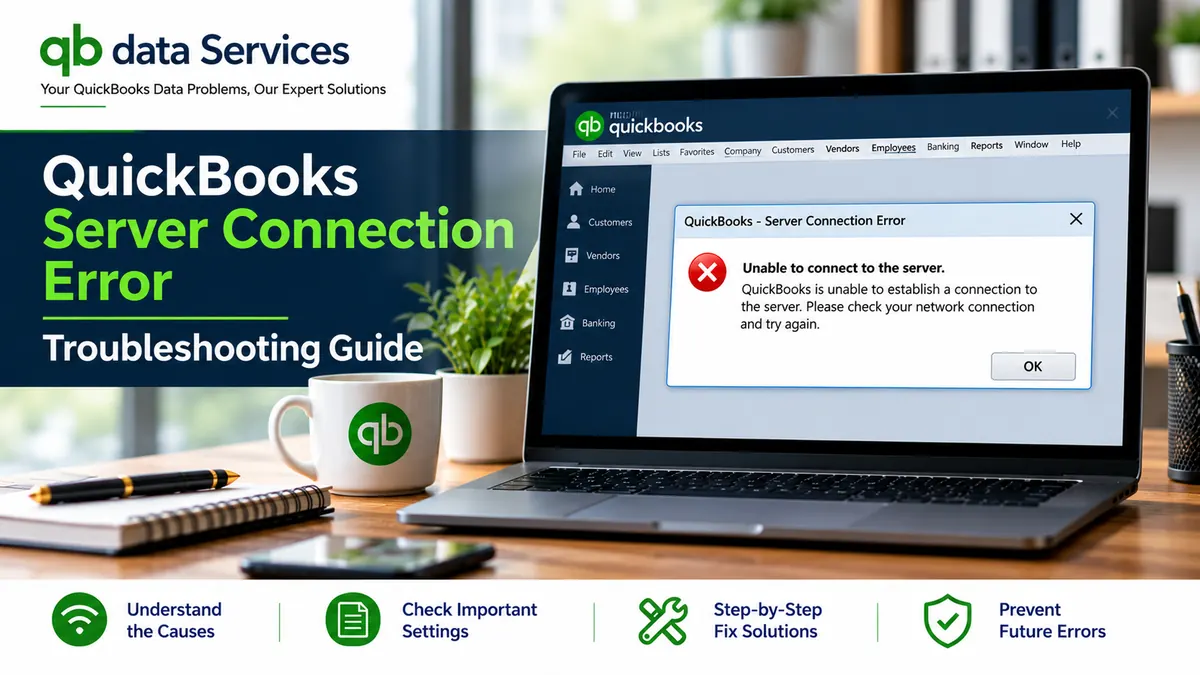
Are you seeing a QuickBooks server connection error when trying to open your company file, access payroll, download software updates, or work with other users? Connection problems can interrupt daily accounting activities and prevent employees from accessing important financial information.
The cause depends on how you use QuickBooks. QuickBooks Desktop users working in multi-user mode may experience network configuration problems, stopped background services, firewall restrictions, or issues with company file access. QuickBooks Online users may encounter browser, internet, or temporary connectivity problems.
If QuickBooks is not connecting to the server, identifying the type of connection failure is the first step toward resolving it. This guide explains the common causes and provides practical troubleshooting steps for QuickBooks Desktop, QuickBooks Online, email connections, and hosted environments.
Quick Fixes for QuickBooks Server Connection Problems
Before making advanced changes to your network or company file, try these initial checks:
- Confirm that the server computer is switched on and connected to the network.
- Restart QuickBooks on the affected workstation.
- Check whether the problem affects one computer or every workstation.
- Verify that the computer hosting the company file is accessible.
- Restart the server and network equipment if it is safe to do so.
- Check whether QuickBooks Database Server Manager is running.
- Review firewall settings if the server is accessible but QuickBooks cannot connect.
- For QuickBooks Online, test the connection using a private browser window.
If these checks do not resolve the problem, continue with the troubleshooting section that matches your QuickBooks product and error message.
Identify the Type of QuickBooks Connection Error
QuickBooks uses different connections for company files, software updates, email, and online services. A problem in one area does not necessarily mean that the entire application is disconnected.
- Company file connection: A workstation cannot open a company file stored on another computer or server.
- Multi-user access: Several users cannot work with the same company file over the network.
- Update connection: QuickBooks cannot download software updates or payroll updates.
- Email connection: QuickBooks cannot send invoices or other messages through the configured email service.
- QuickBooks Online connection: The browser or application cannot communicate reliably with QuickBooks Online.
- Hosted QuickBooks connection: Users cannot connect to a company file or desktop session maintained by a hosting provider.
Identifying the affected service helps prevent unnecessary changes to settings that are unrelated to the problem.
What Causes QuickBooks to Lose Its Server Connection?
Several technical issues can interrupt communication between QuickBooks and a server.
QuickBooks Database Server Manager Is Not Running
QuickBooks Desktop relies on Database Server Manager to support network access to company files. If the required service is stopped or the folder has not been scanned correctly, workstations may be unable to connect.
Incorrect Hosting Configuration
Multi-user hosting must be configured appropriately. If more than one computer attempts to host the same company file, users may experience connection errors or difficulty opening the file.
Firewall or Security Software Restrictions
Windows Firewall and third-party security applications can block network traffic required by QuickBooks. This may prevent workstations from reaching the server even when the company file itself is accessible.
Network Connectivity Problems
A weak Wi-Fi signal, faulty cable, router problem, incorrect IP configuration, or name-resolution issue can prevent a workstation from locating the server.
Company File Location Problems
QuickBooks may experience difficulties if the company file is stored in an unsuitable location, such as a cloud-synchronized folder, or if a network drive no longer points to the correct folder.
Incorrect Folder Permissions
The Windows account used by QuickBooks services must have the necessary permissions to access the folder containing the company file. Incorrect permissions can interfere with multi-user access.
Damaged Network Descriptor Files
QuickBooks Desktop uses network-related files, including files with the .ND extension, to help manage access to company files. If these files become damaged or contain outdated information, connection problems may occur.
Outdated Software or Incorrect Internet Settings
Older software, incorrect system date and time settings, browser problems, or internet configuration issues may prevent QuickBooks from connecting to online services.
Understanding Common QuickBooks Network Error Codes
QuickBooks error codes can help identify the type of connection problem you are experiencing.
QuickBooks Error H101
Error H101 commonly indicates a problem with accessing a company file in multi-user mode. Hosting configuration and network communication should be checked first.
QuickBooks Error H202
Error H202 occurs when a workstation cannot establish the required connection to a company file hosted on another computer. Possible causes include firewall restrictions, stopped QuickBooks services, or network name-resolution problems.
QuickBooks Error H303
Error H303 can occur when QuickBooks cannot communicate with a company file because of hosting or network configuration problems. Review the server setup and the relevant firewall and service settings.
QuickBooks Error H505
Error H505 can indicate that a workstation is trying to access a company file hosted on another computer that is not configured correctly for multi-user access.
QuickBooks 6000-Series Errors
Errors in the 6000 series can occur when QuickBooks encounters problems opening or accessing a company file. The specific code and circumstances determine the appropriate troubleshooting procedure.
Record the complete error code and message before making changes. Different error codes may require different solutions.
What to Check Before Changing Server Settings
Some QuickBooks network fixes involve Windows services, firewall rules, folder permissions, and company file settings. Prepare before proceeding.
- Sign in to Windows using an account with the permissions required for the intended troubleshooting steps.
- Back up the company file if it can be accessed.
- Identify the computer that stores the company file.
- Determine whether the problem affects one workstation or all users.
- Record the exact QuickBooks error code.
- Make sure other users are aware before restarting services or changing shared-file settings.
For business-critical accounting systems, ask your IT administrator or QuickBooks support professional to handle unfamiliar network changes.
How QuickBooks Database Server Manager Supports Multi-User Access
QuickBooks Database Server Manager supports access to company files stored on a computer acting as the host. It helps QuickBooks services make company files available to authorized workstations across the network.
If Database Server Manager is not running correctly, workstations may be unable to connect even when the company file is present on the server.
For that reason, troubleshooting should generally begin with the computer hosting the company file rather than changing every workstation individually.
How to Resolve QuickBooks Desktop Network Connection Errors
The following steps focus on QuickBooks Desktop company files accessed over a local network. Work through them in order and stop when the connection is restored.
Check Network Communication Between the Server and Workstations
First, verify that the workstation can reach the computer hosting the company file.
- Identify the server’s computer name or IP address.
- On the affected workstation, open the Windows Start menu.
- Search for Command Prompt and open it.
- Enter
ping ServerName, replacing ServerName with the actual server name. - Review the results.
- If the server name does not work, ask your IT administrator to test connectivity using the server’s IP address.
If the IP address works but the computer name does not, the issue may involve network name resolution. If neither works, investigate the network connection, server availability, and network configuration before changing QuickBooks settings.
Do not edit the Windows hosts file unless you understand the network configuration and have confirmed that name resolution is the problem. Incorrect entries can create additional connectivity issues.
Correct QuickBooks Hosting Configuration
In a typical QuickBooks Desktop multi-user setup, the computer storing the company file provides hosting services, while the other computers access the file as workstations.
- Open QuickBooks Desktop on each workstation.
- Open the File menu and select Utilities.
- If Stop Hosting Multi-User Access is available on a workstation, review the hosting configuration and stop hosting on that workstation.
- On the designated server, confirm that the appropriate QuickBooks database service is installed and running.
- Verify the hosting configuration using the instructions for your QuickBooks version.
- Test the company file from a workstation.
Do not terminate background processes or change hosting settings without first confirming which computer is supposed to host the company file. If you are unsure, ask your IT administrator to verify the configuration.
Scan the Company File Folder with Database Server Manager
Scanning the company file folder can help Database Server Manager recognize files that need to be available over the network.
- On the server, open QuickBooks Tool Hub if it is installed.
- Navigate to Network Issues.
- Open QuickBooks Database Server Manager.
- Install the component if your QuickBooks setup requires it and the appropriate installer is available.
- Browse to the folder containing the company file.
- Start the scan.
- Wait for the scan to finish.
- Open QuickBooks on a workstation and test access.
Menu names and available tools can vary by QuickBooks Desktop version. Follow the instructions for your installation.
Restart and Configure QuickBooks Background Services
Stopped background services can prevent workstations from accessing a shared company file.
- On the server, press Windows + R.
- Enter
services.mscand press Enter. - Locate the QuickBooks database service associated with your installed version.
- Check whether the service is running.
- If it is stopped, follow your organization’s procedures to start it.
- Review the service startup settings and recovery options where appropriate.
- Check the relevant QuickBooks monitoring service if it is installed.
- Test the connection from a workstation.
Do not change service logon accounts or recovery settings blindly. Incorrect service configuration can create additional problems. If a service repeatedly stops, investigate the Windows event logs and the specific QuickBooks error.
Review Firewall Rules and Antivirus Permissions
Firewall restrictions can prevent QuickBooks from communicating across the network. If the server is reachable but the company file cannot be opened, review the security configuration.
- Confirm the QuickBooks Desktop version installed on the server.
- Open QuickBooks Database Server Manager and check the relevant port information where available.
- Open Windows Defender Firewall with Advanced Security.
- Review the existing inbound and outbound rules for QuickBooks.
- If required, create narrowly scoped rules for the correct QuickBooks programs and ports.
- Follow the port requirements for your specific QuickBooks version.
- Review antivirus settings for any relevant application restrictions.
- Test the connection after applying approved changes.
Do not open arbitrary ports or permanently disable your firewall or antivirus software. If you are uncertain which ports or applications are required, consult your IT administrator and use the official instructions for your installed version.
Rebuild QuickBooks Network Descriptor Files
QuickBooks Desktop uses network-related files to help manage access to a company file. If the network descriptor file becomes damaged or outdated, recreating it may help resolve certain connection problems.
- Close QuickBooks on the computers using the company file.
- Back up the company file before making changes.
- On the server, open the folder containing the company file.
- Locate the matching network descriptor file with the
.NDextension. - Follow the recommended QuickBooks procedure to rename the descriptor file rather than deleting it.
- Open Database Server Manager and scan the company file folder again.
- Test the connection from a workstation.
Do not rename unrelated files or delete the company file itself. If the problem persists, investigate the exact error code before making further changes.
Move the Company File to a Suitable Network Location
The location of the company file can affect network access. Cloud-synchronized folders may interfere with applications that expect direct access to a shared company file.
- Identify the current location of the QuickBooks company file.
- Check whether the file is stored in a cloud-synchronized folder.
- Review the storage requirements for your QuickBooks version.
- If relocation is necessary, make a verified backup first.
- Have the designated administrator move the file to a suitable local server location and configure the shared folder correctly.
- Rescan the folder in Database Server Manager if required.
- Open the file from the workstation using the correct network location.
A shared network path may be more reliable than a mapped drive that changes or becomes unavailable after a restart. However, the correct arrangement depends on your network and QuickBooks configuration.
Verify Windows Folder Permissions
QuickBooks database services require appropriate access to the folder containing the company file. Incorrect permissions can prevent the server service from reading or managing the file.
- On the server, locate the folder containing the company file.
- Right-click the folder and select Properties.
- Open the Security tab.
- Review the permissions assigned to the relevant QuickBooks service account and authorized users.
- Compare the current permissions with the requirements for your QuickBooks version.
- Correct insufficient permissions using an authorized administrator account.
- Test the company file from a workstation.
Do not grant broad permissions to every Windows user simply to make the connection work. Apply only the permissions required by the QuickBooks installation and your organization’s security policy.
Run QuickBooks Network Diagnostics and File Repair Tools
If the connection problem continues, use the troubleshooting tools available for your QuickBooks version.
- QuickBooks Tool Hub: Review the Network Issues and Company File Issues sections.
- Database Server Manager: Scan the company file folder and review any messages.
- QuickBooks File Doctor: Use it if the problem may involve company file or network access and the tool is supported for your installation.
Back up the company file before running repair procedures. If a diagnostic tool reports a specific error, use that message to determine the next step rather than repeating repairs without a clear reason.
Review Network Configuration and Connectivity
Network configuration problems may cause intermittent or persistent server connection errors.
- Confirm that the server has a stable network connection.
- Ask your IT administrator whether a stable server IP address is appropriate for your network.
- Check the Windows network profile and sharing settings according to your organization’s security policy.
- Inspect cables, switches, and router connections if connectivity is unreliable.
- Test whether the problem occurs when using a wired connection instead of weak Wi-Fi.
- If a VPN is involved, ask your network administrator to test whether it is affecting connectivity.
Changes to IP addresses, VPNs, and sharing settings should be coordinated with the person responsible for your network. Incorrect changes can affect other business systems.
How to Access QuickBooks While Troubleshooting the Server
If you need to open QuickBooks while investigating a network issue, the steps depend on whether the company file is available locally or only on the server.
In some QuickBooks Desktop versions, holding the Ctrl key while opening the application can prevent a company file from opening automatically. This may allow you to access the application interface or help options.
However, this does not repair the server connection or guarantee access to the shared company file. Do not create or use a separate company file as a replacement for the live business file without a clear recovery plan. Working in a separate copy can lead to conflicting accounting records.
Fix QuickBooks Connection Problems During Software Updates
If QuickBooks connects to the company file but cannot download software or payroll updates, the issue may be related to internet settings rather than multi-user hosting.
Check the Internet Connection Settings
- Open QuickBooks Desktop.
- Go to Help and look for Internet Connection Setup, if available.
- Review the connection settings and select the option that uses the computer’s internet connection.
- Save the settings and close the dialog.
- Confirm that other websites load correctly.
Verify Date, Time, and Secure Connection Settings
Incorrect computer date and time settings can interfere with secure connections. Verify the system clock and time zone before troubleshooting more advanced settings.
If QuickBooks displays a secure connection or TLS error, follow the official instructions for your Windows and QuickBooks versions. Avoid changing multiple security settings without understanding their purpose.
Retry the QuickBooks Update
- Open QuickBooks Desktop.
- Go to Help and select Update QuickBooks Desktop.
- Review the available update options.
- Download and install the applicable update.
- Restart QuickBooks if prompted.
- Try the update again.
If the update still fails, record the exact error code and troubleshoot that specific problem. A server connection error during updates may require a different solution from a company file connection error.
Resolve QuickBooks Email Server Connection Errors
If QuickBooks cannot send invoices or other email messages, the problem may involve your email provider’s settings rather than your company file server.
- Open QuickBooks Desktop.
- Go to Edit and select Preferences.
- Open Send Forms.
- Review the email method configured for your account.
- If you use webmail, verify the email address and the provider’s current server settings.
- Follow your email provider’s authentication requirements.
- Send a test message.
Some email providers require additional authentication or an app password. Use the current instructions provided by your email service rather than guessing SMTP settings.
If the test email fails, record the error message and investigate the email provider’s connection requirements.
Troubleshoot Server Connection Issues in QuickBooks Online
QuickBooks Online does not use the same local company file hosting arrangement as QuickBooks Desktop. If QuickBooks Online displays a server connection message, start by investigating the browser and internet connection.
Open QuickBooks Online in a Private Browser Window
- Open a private or incognito browser window.
- Sign in to QuickBooks Online.
- Open the page where the connection error occurred.
- Check whether the problem continues.
If the page works in a private window, cached browser data or an extension may be contributing to the issue. Clear the relevant browser cache and cookies if needed, then sign in again.
Check Your Internet Connection
Open other websites to determine whether the connection problem affects the entire internet connection or only QuickBooks Online.
If other sites also fail to load, troubleshoot your network connection first. If only QuickBooks Online is affected, continue with browser and service-specific checks.
Disable Conflicting Extensions Temporarily
Privacy extensions, ad blockers, and VPN software can sometimes interfere with web applications. If you suspect an extension is causing the problem, test QuickBooks Online in a clean browser session or temporarily disable the suspected extension according to your organization’s security policy.
Restore any security settings after testing and avoid disabling essential security protections permanently.
Try Another Browser or Device
Update your browser or try another supported browser. You can also test QuickBooks Online from another trusted device to determine whether the issue is specific to one computer.
If you use a dedicated QuickBooks Online application, review its available troubleshooting or reset options. Menu names and available functions may differ by application version.
Fix Connectivity Problems in QuickBooks Point of Sale and Mac
QuickBooks Point of Sale and QuickBooks for Mac use different configurations from QuickBooks Desktop on Windows. Their troubleshooting procedures should be handled separately.
QuickBooks Point of Sale
- Confirm that the computer hosting the Point of Sale data is running.
- Verify that the server and client computers can communicate over the network.
- Check that the relevant installations use compatible versions.
- If the connection failed after a restart, follow the product-specific procedure for restarting the server and client applications.
Before restarting services or changing shared data settings, make sure that users have completed or safely stopped their work.
QuickBooks for Mac
- Check that the host Mac is running.
- Open the QuickBooks Server application, where applicable.
- Verify that the company file is included in the shared files list.
- Review the file-sharing permissions in macOS settings.
- Check for applicable QuickBooks updates.
If the connection remains unavailable, consult the instructions for your QuickBooks for Mac version and macOS release.
QuickBooks Hosted Server and Remote Desktop Connection Issues
If your business uses hosted QuickBooks or Remote Desktop, the connection may depend on services managed by an external hosting provider.
In a hosted environment, the provider may control the server, firewall, network ports, database services, and company file storage. Changing settings locally may not resolve a problem that originates on the host’s infrastructure.
Contact your hosting provider if:
- You cannot sign in to the hosted desktop.
- The hosted QuickBooks application cannot locate the company file.
- Several users lose access at the same time.
- The problem started after a server maintenance event.
- The provider manages the firewall or QuickBooks services.
Provide the exact error message, the time the issue started, and whether other users are affected. This information can help the hosting provider investigate the connection failure.
How to Prevent QuickBooks Network Errors in the Future
Good maintenance practices can reduce the likelihood of recurring QuickBooks connection problems.
- Keep QuickBooks updated: Install applicable updates for the server and workstations.
- Use an appropriate hosting setup: Ensure that the company file is hosted by the designated computer.
- Store company files correctly: Follow QuickBooks recommendations for shared company file locations.
- Review firewall rules: Recheck the relevant application and port rules after significant security software changes.
- Monitor QuickBooks services: Investigate services that repeatedly stop.
- Maintain folder permissions: Ensure that authorized services and users have the access they require.
- Keep reliable backups: Back up company files regularly and verify that the backup process works.
- Maintain the network: Investigate unstable Wi-Fi, faulty cables, and recurring network interruptions.
- Document changes: Record significant server, firewall, and software configuration changes.
Preventive maintenance is particularly important when multiple employees rely on the same QuickBooks company file.
When to Seek Professional QuickBooks Server Support
If QuickBooks continues to display a server connection error after the basic checks, the cause may involve a complex network configuration, damaged company file, service problem, or hosting issue.
Consider professional assistance if:
- Multiple workstations cannot access the company file.
- QuickBooks Database Server Manager repeatedly stops working.
- Firewall or network configuration changes are required.
- QuickBooks reports recurring H202, H303, or H505 errors.
- The company file cannot be opened or may be damaged.
- QuickBooks runs on a hosted server managed by another provider.
QB Data Services provides QuickBooks-related troubleshooting resources to help users investigate accounting software issues.
Need help with a QuickBooks connection problem? Visit QB Data Services to explore our QuickBooks troubleshooting guides and support information.
Frequently Asked Questions
Why can’t QuickBooks connect to the company server?
QuickBooks may be unable to connect because Database Server Manager is not running, a required service has stopped, a firewall is blocking communication, the network cannot locate the server, or the company file is stored in an unsuitable location. Start by checking server availability and the network configuration.
How do I resolve QuickBooks error H202?
Error H202 commonly indicates that a workstation cannot connect to a company file hosted on another computer. Check network connectivity, hosting configuration, QuickBooks services, and firewall rules. If the problem continues, use the official troubleshooting procedure for the exact error.
What should I do when QuickBooks displays error H505?
Check whether the computer hosting the company file is configured correctly for multi-user access. Review the QuickBooks database service, network communication, and firewall configuration. Avoid changing hosting settings on multiple computers without confirming the intended server setup.
How can I restart QuickBooks Database Server Manager?
On the server, open the Windows Services console and locate the QuickBooks database service associated with your installation. Check its status and use the appropriate restart procedure if required. Menu names and service names can vary by version.
Can Windows Firewall block QuickBooks server connections?
Yes. Firewall rules can prevent QuickBooks from communicating over the network. Review the rules for your QuickBooks version and configure the required applications and ports according to official instructions. Do not permanently disable firewall protection to bypass the problem.
Why did QuickBooks stop connecting after a Windows update?
A Windows update may coincide with changes to firewall rules, network settings, or service behavior. Check the network connection, QuickBooks services, and relevant firewall rules. Identify the specific failure before changing system settings.
Where should I store a QuickBooks company file for multi-user access?
Use a location supported by your QuickBooks Desktop version and configured for network access. Avoid placing an actively shared company file in a cloud-synchronized folder unless the product documentation explicitly supports your configuration. Ensure that the relevant services and authorized users have the required permissions.
Will rebuilding QuickBooks network files delete my accounting data?
Network descriptor files such as the .ND file are different from the main company file. Recreating a network descriptor file is intended to address connection information, but you should follow the correct procedure for your version, close QuickBooks where required, and back up the company file before troubleshooting.
Final Thoughts on Fixing QuickBooks Server Connection Errors
A QuickBooks server connection error can result from a stopped database service, incorrect hosting configuration, firewall restrictions, network communication problems, or issues with the company file location.
Start by identifying whether the problem affects QuickBooks Desktop multi-user access, software updates, email, QuickBooks Online, or a hosted environment. Then follow the troubleshooting steps specific to that connection type.
Before changing services, firewall rules, or company file settings, protect your accounting data with a backup and confirm that the proposed change is appropriate for your setup.
For additional QuickBooks troubleshooting resources, visit QB Data Services.