
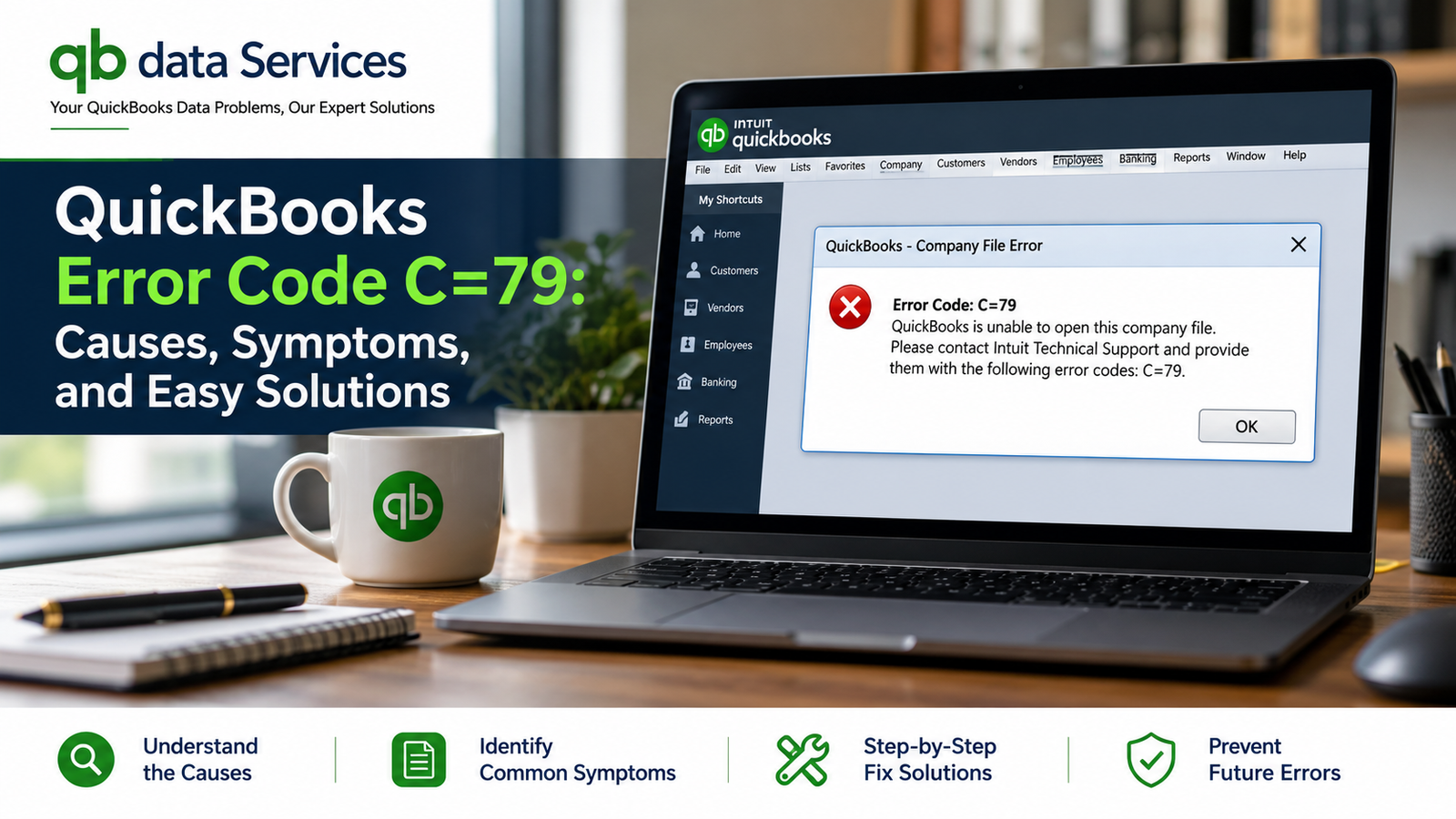
QuickBooks Error Code C=79 is a common company file error that occurs when QuickBooks Desktop cannot properly read or access the company file. This issue often appears while opening a company file, generating reports, or working with financial data after an unexpected system interruption.
When the error occurs, QuickBooks may freeze, stop responding, or crash unexpectedly, preventing users from accessing important accounting information. If left unresolved, it can affect daily bookkeeping operations and create risks for company data.
In this guide, we will explain the common causes, symptoms, and solutions for QuickBooks Error C=79. Follow the troubleshooting methods below carefully to restore access to your QuickBooks company file.
Table of Contents
Common QuickBooks Error C=79 Messages
Users may encounter one or more of the following messages when QuickBooks Error C=79 occurs:
- QuickBooks Error C=79 has occurred.
- QuickBooks has encountered a problem and needs to close.
- Unable to read company file.
- QuickBooks cannot access the company data.
- An unexpected error occurred while opening the company file.
What Causes QuickBooks Error Code C=79?
Several factors can trigger QuickBooks Error Code C=79. Some of the most common causes are explained below.
Damaged Company File
Corruption within the QuickBooks company file is one of the common causes of Error C=79. Damaged data structures can prevent QuickBooks from accessing records properly.
Network Connectivity Issues
When company files are stored on a server or network location, an unstable network connection may interrupt communication between QuickBooks and the company file.
Unexpected Power Failure
Sudden shutdowns caused by power outages or system interruptions can affect QuickBooks files and create data inconsistencies.
Hard Drive Problems
Bad sectors, file-system problems, or other disk-related issues can affect the accessibility of QuickBooks company files and program components.
Incomplete QuickBooks Installation
Missing, damaged, or improperly installed QuickBooks program files can cause company file access errors and other unexpected problems.
Malware or Virus Infection
Malware can potentially damage company files, Windows components, and QuickBooks program files, which may contribute to Error C=79.
Symptoms of QuickBooks Error Code C=79
You may notice the following symptoms when QuickBooks Error C=79 occurs:
- QuickBooks crashes unexpectedly.
- The company file fails to open.
- QuickBooks becomes slow or unresponsive.
- QuickBooks freezes during operations.
- Reports fail to generate correctly.
- Windows becomes unresponsive while QuickBooks is running.
- QuickBooks shuts down unexpectedly.
- There is a delayed response when accessing company records.
How to Fix QuickBooks Error Code C=79
There are several ways to troubleshoot QuickBooks Error C=79. Try the following solutions one at a time and check QuickBooks after each method.
1. Update QuickBooks Desktop
Running an outdated QuickBooks version can contribute to program and company file problems. Updating QuickBooks may resolve known issues and improve compatibility.
Steps to Update QuickBooks:
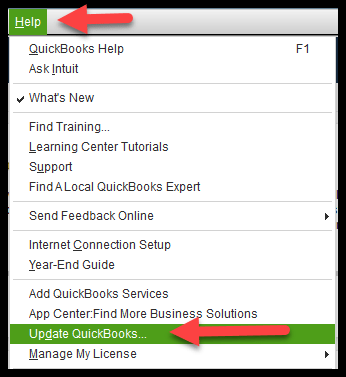
- Open QuickBooks Desktop.
- Select Help.
- Click Update QuickBooks Desktop.
- Select Update Now.
- Click Get Updates.
- Wait for the update to finish.
- Restart QuickBooks Desktop.
After restarting QuickBooks, open your company file and check whether the error has been resolved.
2. Verify and Rebuild Company Data
QuickBooks includes built-in utilities that can help identify and repair certain types of company file data problems.
Verify Data
- Open QuickBooks Desktop.
- Go to File > Utilities.
- Select Verify Data.
- Allow QuickBooks to scan the company file.
- Review the results after the scan is complete.
Rebuild Data
- Go to File > Utilities.
- Select Rebuild Data.
- Create a backup when QuickBooks asks you to do so.
- Allow QuickBooks to repair the company file.
- Wait until the rebuild process is completely finished.
- Open QuickBooks again and check the company file.
If possible, run Verify Data again after the rebuild to check whether the company file is still reporting errors.
3. Run QuickBooks File Doctor
QuickBooks File Doctor can help diagnose certain company file and network-related problems.
Steps to Use QuickBooks File Doctor:
- Download and install QuickBooks Tool Hub.
- Open QuickBooks Tool Hub.
- Select Company File Issues.
- Click Run QuickBooks File Doctor.
- Select your company file.
- Start the scan.
- Wait for the diagnostic process to finish.
- Reopen QuickBooks and check the company file.
4. Restore a Recent Backup
If the company file is severely damaged, restoring a recent healthy backup may help you regain access to your accounting data.
Steps to Restore a Backup:
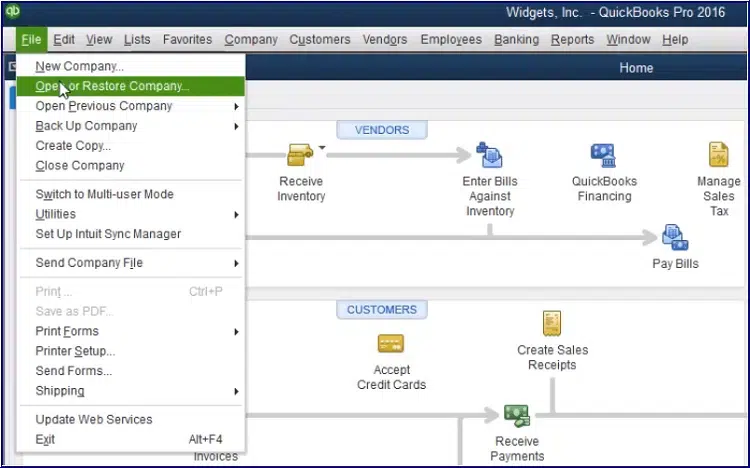
- Open QuickBooks Desktop.
- Select File > Open or Restore Company.
- Choose Restore a Backup Copy.
- Select Local Backup.
- Browse to the location of your backup file.
- Select the backup file.
- Follow the instructions displayed on the screen.
- Open the restored company file and verify your data.
Before restoring a backup over your existing company file, make sure you have a separate copy of the current file and understand which transactions may not be included in the backup.
5. Check Your Hard Drive for Errors
Disk-related problems can prevent QuickBooks from accessing company data correctly. If you suspect a Windows drive problem, you can use the built-in Windows disk-checking utility.
Basic Disk Check:
- Open Command Prompt as Administrator.
- Type
chkdsk /f. - Press Enter.
- If Windows asks to schedule the check for the next restart, follow the instructions shown.
- Restart the computer if required.
- Allow Windows to complete the disk check.
Make sure important QuickBooks data is backed up before performing significant disk repairs.
6. Move the Company File to a Local Drive
If your company file is stored on a network server or shared location, temporarily moving a copy of the file to the local computer can help determine whether the problem is related to the network or server.
Steps:
- Close QuickBooks Desktop.
- Locate the QuickBooks company file.
- Create a copy of the company file.
- Copy the file to the local computer.
- Open QuickBooks Desktop.
- Open the copied company file.
If the local copy opens correctly while the network copy does not, investigate the network connection, server permissions, or hosting configuration.
Best Practices to Prevent QuickBooks Error C=79
Taking a few preventive measures can reduce the risk of company file problems and help protect your accounting data.
- Create regular QuickBooks company file backups.
- Keep QuickBooks Desktop updated.
- Use a stable network connection for network-based company files.
- Shut down Windows properly instead of forcing the computer to turn off.
- Use reputable antivirus and security software.
- Run Verify Data when QuickBooks starts behaving unexpectedly.
- Monitor the health and available storage space of your hard drive.
- Keep multiple copies of important backups in secure locations.
Final Thoughts
QuickBooks Error Code C=79 can occur when QuickBooks Desktop has difficulty accessing or processing company file information. Company file damage, network interruptions, hard drive problems, damaged QuickBooks program files, and other system issues can contribute to the problem.
Fortunately, several troubleshooting options are available. Start by updating QuickBooks and running Verify Data. If QuickBooks identifies data problems, use Rebuild Data. You can also test the company file locally, use QuickBooks Tool Hub, restore a healthy backup, or investigate possible storage and installation issues.
Always create a backup before performing major repairs or restoring company data. If the problem continues after the standard troubleshooting steps, professional QuickBooks data repair may be necessary.
Frequently Asked Questions
What is QuickBooks Error Code C=79?
QuickBooks Error Code C=79 is a company file-related error that can occur when QuickBooks Desktop cannot properly access or read company data.
Can a damaged company file cause Error C=79?
Yes. Company file damage is one possible cause of QuickBooks Error C=79. Running Verify Data can help determine whether QuickBooks detects problems within the company file.
Does QuickBooks File Doctor fix Error C=79?
QuickBooks File Doctor can help diagnose and repair certain company file and network-related problems. However, the appropriate solution depends on the underlying cause of the error.
How can I prevent QuickBooks Error C=79?
Keep QuickBooks updated, create regular backups, use a stable network connection, shut down your computer properly, and periodically check the health of your company file and storage drive.
Can restoring a backup fix Error C=79?
Yes. If the current company file is severely damaged and you have a healthy recent backup, restoring the backup may restore access to your accounting data.