
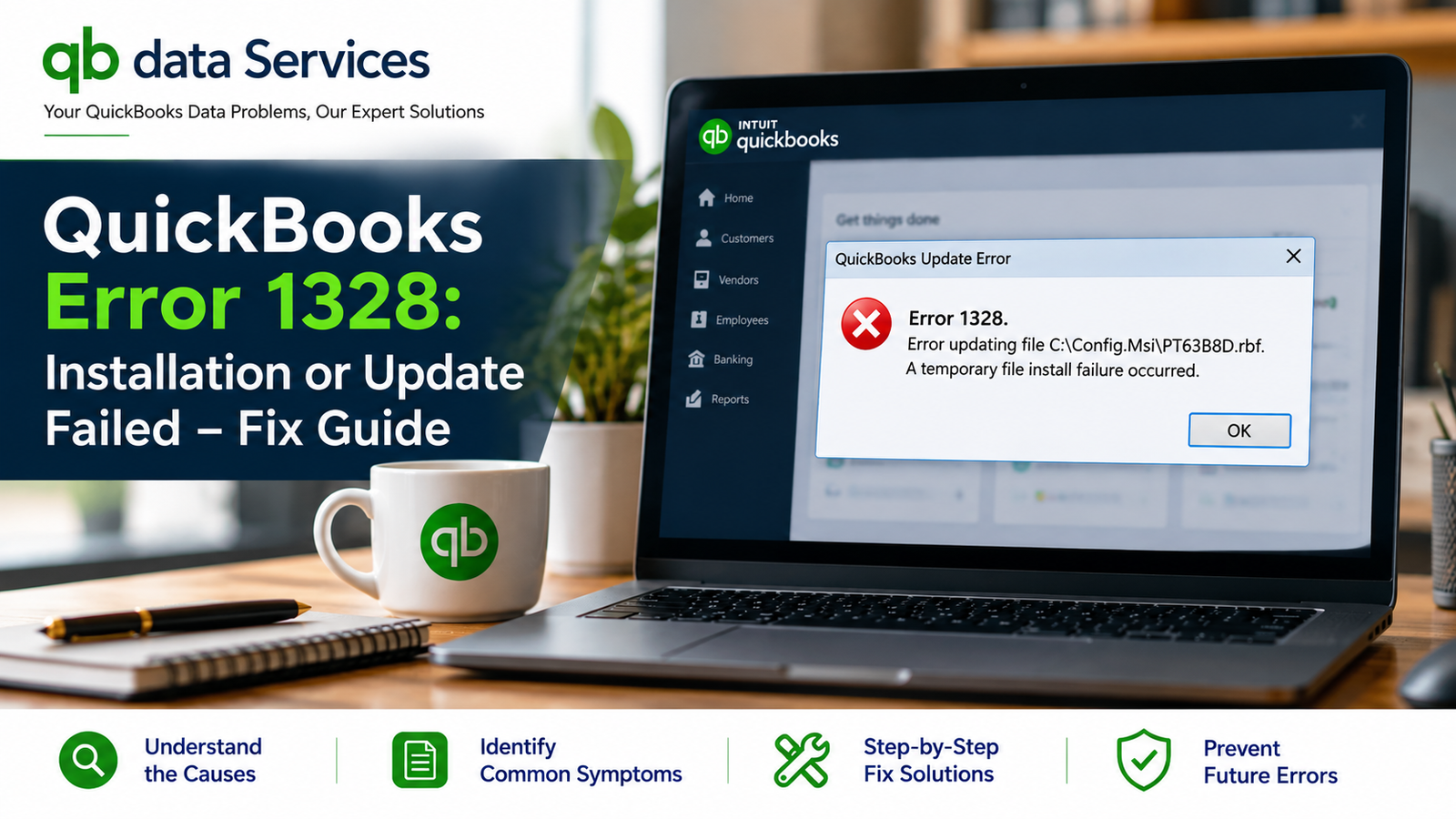
QuickBooks Error 1328 can appear when QuickBooks Desktop is unable to update, replace, repair, or write one of its required program files. You may encounter the error while installing QuickBooks, downloading an update, repairing the software, or reinstalling an existing version.
The problem can be frustrating because the installation or update may stop before completion. In some situations, QuickBooks may repeatedly display the same error even after restarting the computer.
Common reasons include damaged QuickBooks installation files, insufficient Windows permissions, security software interference, an incorrect installation path, damaged Windows components, or an interrupted update.
This guide explains the common causes and symptoms of QuickBooks Error 1328 and provides practical troubleshooting methods you can follow from the simplest solutions to more advanced repairs.
What Is QuickBooks Error 1328?
QuickBooks Error 1328 is an installation, update, or repair-related error that occurs when QuickBooks Desktop cannot successfully modify or replace a required file.
The error may appear with a message similar to:
Error 1328: Error updating file
The exact message and file path can vary depending on your QuickBooks version and the Windows environment.
In general, the error indicates that QuickBooks has encountered a problem while attempting to complete an important file operation.
What Causes QuickBooks Error 1328?
There is no single cause of Error 1328. The problem can be related to QuickBooks itself, Windows permissions, security software, or the storage location being used for the installation.
Common causes include:
- Damaged QuickBooks program files
- Incomplete QuickBooks installation
- Interrupted QuickBooks update or repair
- Insufficient administrator permissions
- Antivirus or firewall interference
- Incorrect or inaccessible installation paths
- Damaged Windows system components
- Problems with Microsoft .NET Framework
- Windows registry issues
- User Account Control restrictions
- Hard-drive or disk errors
- Corrupted QuickBooks installation files
- Conflicts caused by third-party applications
Symptoms of QuickBooks Error 1328
You may notice one or more of the following symptoms when QuickBooks Error 1328 occurs:
- QuickBooks installation stops unexpectedly.
- QuickBooks updates fail before completion.
- An error message appears while replacing or updating a file.
- The repair process stops midway.
- QuickBooks repeatedly asks for administrator permission.
- The installation rolls back automatically.
- QuickBooks fails to launch after an update.
- Windows displays an access-denied message.
- The same error appears after restarting the computer.
- You are unable to reinstall QuickBooks Desktop normally.
How to Fix QuickBooks Error 1328
Try the following solutions in order. Start with the basic troubleshooting methods before moving to advanced repairs.
Solution 1: Run QuickBooks as an Administrator
QuickBooks may require elevated Windows permissions to modify files inside protected folders. Running the installer with administrator privileges can resolve permission-related installation problems.
Steps:
- Close QuickBooks Desktop.
- Locate the QuickBooks installation file or shortcut.
- Right-click the file.
- Select Run as administrator.
- Choose Yes if Windows displays a User Account Control prompt.
- Try installing or updating QuickBooks again.
If the installation works with administrator privileges, the original problem may have been related to Windows permissions.
Solution 2: Temporarily Check Antivirus and Firewall Settings
Security software can sometimes interfere with QuickBooks installation or update processes by blocking files or network activity.
Instead of leaving your security software disabled, use this step only for troubleshooting and restore your normal security settings afterward.
What to check:
- Review your antivirus quarantine or blocked-items list.
- Make sure QuickBooks is allowed through the firewall.
- Add QuickBooks to the appropriate security exceptions if necessary.
- Retry the installation after confirming that QuickBooks is not being blocked.
- Restore normal security settings after testing.
If your security software is responsible for the problem, adding an appropriate QuickBooks exception may be preferable to repeatedly disabling protection.
Solution 3: Use QuickBooks Tool Hub
QuickBooks Tool Hub provides several troubleshooting utilities that can help diagnose installation and program problems.
Use the Install Diagnostic Tool:
- Open QuickBooks Tool Hub.
- Select Installation Issues.
- Choose QuickBooks Install Diagnostic Tool.
- Allow the diagnostic process to complete.
- Restart your computer.
- Try installing or updating QuickBooks again.
This method is particularly useful when damaged installation components or Windows dependencies are preventing QuickBooks from completing the installation.
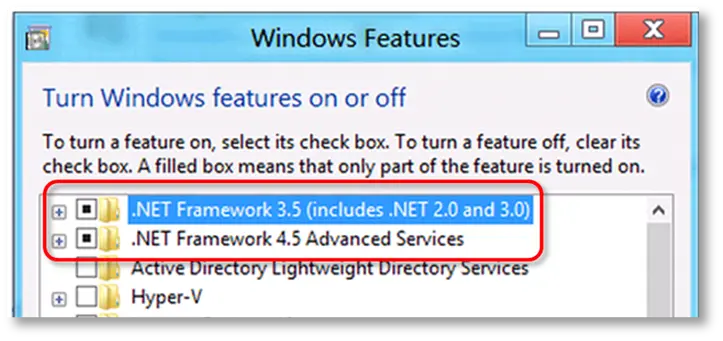
Solution 4: Repair Microsoft .NET Framework
QuickBooks Desktop relies on several Windows components, including Microsoft .NET Framework. If required components are damaged or incorrectly configured, installation and update operations may fail.
Try the following:
- Open Windows Control Panel.
- Go to Programs and Features.
- Review the installed Microsoft .NET Framework components.
- Use the available Windows repair or modification options where applicable.
- Restart Windows.
- Install pending Windows updates.
- Try the QuickBooks installation again.
A properly maintained Windows environment can help prevent compatibility problems during QuickBooks installation.
Solution 5: Perform a Clean Installation of QuickBooks
If QuickBooks has damaged or leftover installation files, a clean installation may resolve Error 1328.
General process:
- Back up your QuickBooks company files before making major changes.
- Uninstall QuickBooks Desktop.
- Use the appropriate QuickBooks cleanup or clean-install utility.
- Restart your computer.
- Download a fresh QuickBooks installer from an official source.
- Run the installer as administrator.
- Complete the installation.
- Open QuickBooks and verify that the program works correctly.
A clean installation can remove residual program components that may be interfering with a normal update or repair.
Solution 6: Check Windows User Permissions
Incorrect permissions can prevent QuickBooks from modifying files required during installation or updating.
Check your Windows account:
- Open Windows Settings or Control Panel.
- Open your user account settings.
- Confirm that your account has administrator privileges.
- Try running the QuickBooks installer as administrator.
- Retry the installation.
If the issue occurs only under one Windows profile, testing the installation from another administrator account can also help determine whether the user profile is involved.
Solution 7: Start Windows in Selective Startup
Third-party applications and background services can sometimes interfere with QuickBooks installation. Selective Startup allows you to test whether another program is causing the conflict.
Steps:
- Press Windows + R.
- Type msconfig and press Enter.
- Open the General tab.
- Select Selective startup.
- Temporarily prevent unnecessary startup programs from loading.
- Restart Windows.
- Try installing or updating QuickBooks.
After troubleshooting, return Windows to its normal startup configuration.
Solution 8: Install Pending Windows Updates
Outdated Windows components can contribute to application installation problems. Make sure Windows is fully updated before attempting another QuickBooks installation.
Steps:
- Open Windows Settings.
- Go to Windows Update.
- Check for available updates.
- Install the recommended updates.
- Restart the computer.
- Try updating or installing QuickBooks again.
Solution 9: Check the QuickBooks Installation Path
Error 1328 may occur when QuickBooks is attempting to access a location that is unavailable or does not have the required permissions.
Check that:
- The installation drive is available.
- There is sufficient free disk space.
- The installation is not being performed from a removable drive.
- The destination folder is accessible.
- You are not attempting to install QuickBooks to an inaccessible network location.
If the installation drive has disk problems, resolve those problems before attempting another QuickBooks installation.
Solution 10: Repair Windows System Files
Damaged Windows system files can interfere with applications and installation services.
Windows provides built-in system repair utilities that can be used to check for system-file problems.
Basic steps:
- Open Command Prompt as administrator.
- Run the Windows System File Checker command.
- Allow the scan to finish.
- Follow any repair instructions provided by Windows.
- Restart the computer.
- Try installing QuickBooks again.
Do not interrupt the system-file repair process while it is running.
Solution 11: Check the Installation Drive for Errors
If the hard drive or SSD contains file-system errors, Windows may have difficulty writing or replacing QuickBooks files.
You can check the drive using Windows disk-checking tools:
- Open File Explorer.
- Right-click the drive where QuickBooks is being installed.
- Select Properties.
- Open the Tools section.
- Use the available error-checking option.
- Follow the Windows instructions.
- Restart the computer if requested.
Solution 12: Download a Fresh QuickBooks Installer
A damaged or incomplete installer can cause errors during installation. If you downloaded the installer previously and the file may have been interrupted or corrupted, download a fresh copy from the official QuickBooks source.
Recommended steps:
- Remove the old installer if necessary.
- Download a fresh installer.
- Save it to your local drive.
- Right-click the installer.
- Select Run as administrator.
- Complete the installation.
Solution 13: Repair Microsoft Visual C++ Components
QuickBooks Desktop may depend on Microsoft runtime components. If these components are damaged, application installation or startup problems can occur.
Open Programs and Features, locate the relevant Microsoft Visual C++ Redistributable packages, and use the available Repair option where supported.
Restart Windows after completing the repair and test QuickBooks again.
Solution 14: Create a New Windows User Profile
If QuickBooks installs correctly under another Windows administrator account, your existing Windows profile may be contributing to the problem.
To test this:
- Open Windows Settings.
- Go to Accounts.
- Select the option to add another user.
- Create a temporary administrator account.
- Sign out of the current Windows account.
- Sign in using the new account.
- Try installing or repairing QuickBooks.
If the installation works normally under the new profile, the original Windows account may require further troubleshooting.
Solution 15: Reinstall QuickBooks After Complete Cleanup
If all other methods fail, perform a complete QuickBooks removal and reinstall the software using a fresh installation package.
Before proceeding, make sure your QuickBooks company files and backups are stored safely. Removing QuickBooks Desktop does not mean you should delete your company data.
General process:
- Back up your company files.
- Uninstall QuickBooks Desktop.
- Use the appropriate QuickBooks cleanup utility.
- Restart Windows.
- Download a fresh QuickBooks installer.
- Install QuickBooks as administrator.
- Open the program.
- Restore or open your company file.
- Verify that the error no longer appears.
How to Prevent QuickBooks Error 1328
After resolving the problem, a few maintenance practices can reduce the chance of similar installation and update issues occurring again.
- Keep Windows updated.
- Keep QuickBooks Desktop updated.
- Create regular backups of your company file.
- Do not interrupt QuickBooks updates.
- Maintain adequate free disk space.
- Use reliable antivirus software.
- Allow QuickBooks through your firewall when required.
- Avoid installing QuickBooks from unreliable third-party sources.
- Use administrator permissions when required.
- Do not manually delete important QuickBooks program files.
When Should You Get Professional QuickBooks Help?
If QuickBooks Error 1328 continues after repairing the installation, checking Windows components, and performing a clean installation, the problem may involve a deeper Windows configuration issue or a damaged QuickBooks environment.
Professional assistance may be appropriate when:
- QuickBooks cannot be installed on the computer at all.
- The error returns after every update.
- Multiple QuickBooks installation tools fail.
- The company file also shows signs of corruption.
- The installation fails on multiple Windows user accounts.
- Windows itself is reporting disk or system-file errors.
Final Thoughts
QuickBooks Error 1328 can interrupt installation, updating, or repair of QuickBooks Desktop, but the underlying problem can often be identified by checking permissions, installation files, Windows components, security software, and the installation drive.
Start with administrator permissions and a fresh installer, then move to QuickBooks Tool Hub, Windows repairs, and a clean installation if necessary. Always protect your QuickBooks company file with a current backup before performing major repairs or reinstalling the software.
If the error continues and you are concerned about your QuickBooks installation or company data, professional QuickBooks troubleshooting can help identify the underlying cause without unnecessarily changing or deleting your accounting files.
Frequently Asked Questions
What is QuickBooks Error 1328?
QuickBooks Error 1328 is an installation, update, or repair error that occurs when QuickBooks Desktop cannot successfully update, replace, or write a required file.
Why does QuickBooks Error 1328 occur during an update?
The error can occur because of damaged QuickBooks files, insufficient permissions, security software interference, Windows component problems, an inaccessible installation path, or an interrupted update.
Can QuickBooks Tool Hub fix Error 1328?
QuickBooks Tool Hub includes installation troubleshooting utilities that may help repair problems affecting QuickBooks installation and program components.
Will reinstalling QuickBooks delete my company file?
Reinstalling the QuickBooks program does not normally mean that your company file should be deleted. However, you should always create a current backup of your company data before uninstalling or performing major repairs.
Can antivirus software cause QuickBooks Error 1328?
Security software can sometimes interfere with QuickBooks installation or update operations. Check your security settings and make sure QuickBooks is permitted to perform the required operations.
How do I fix QuickBooks Error 1328 permanently?
The appropriate fix depends on the cause. Common troubleshooting steps include checking administrator permissions, repairing QuickBooks components, using QuickBooks Tool Hub, updating Windows, checking the installation drive, and performing a clean QuickBooks installation when necessary.