

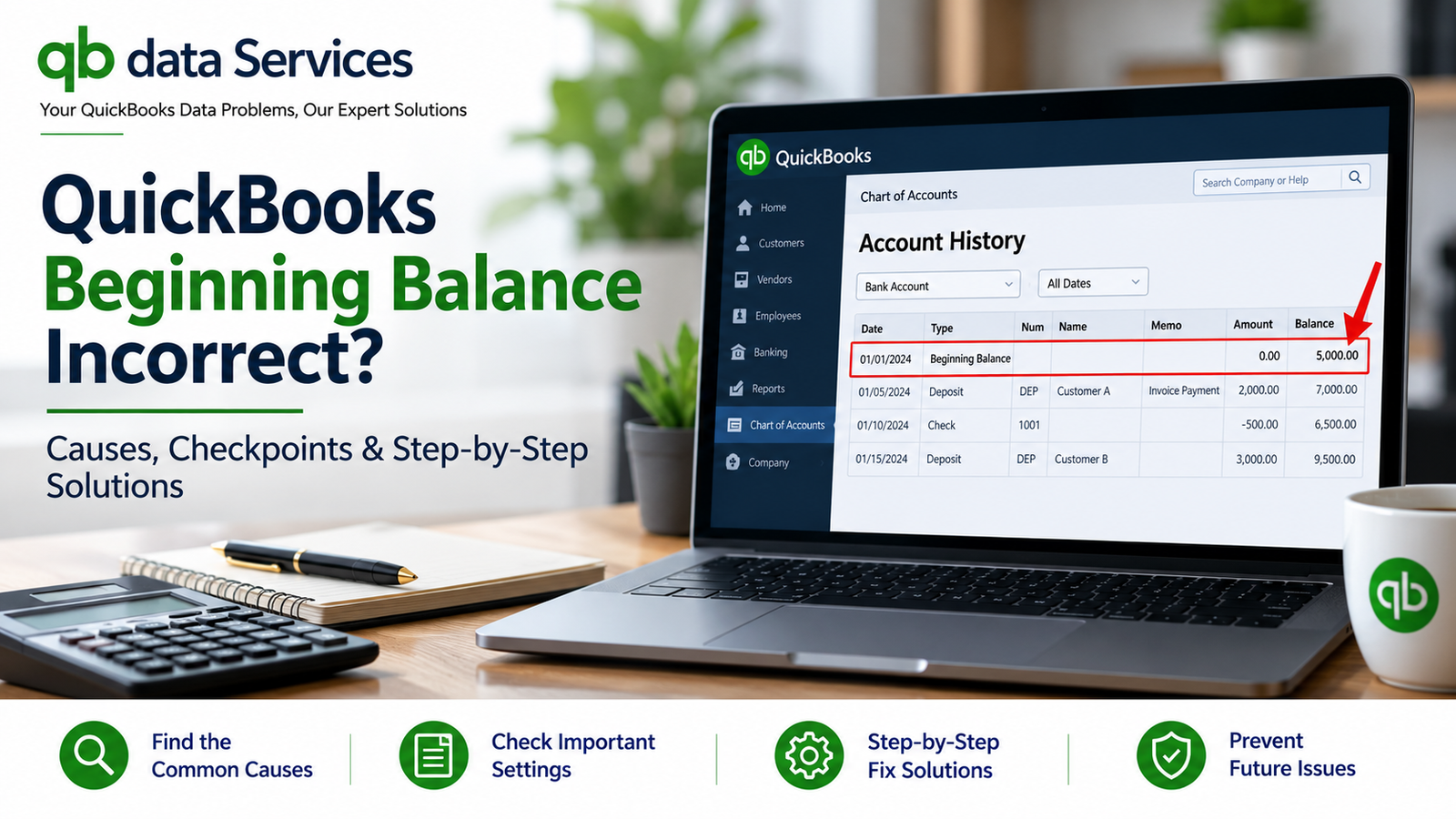
When you open the reconciliation window in QuickBooks Desktop or QuickBooks Online, you expect the beginning balance to match the ending balance of your previous bank statement. However, sometimes the amount is incorrect, shows zero, or differs from your records by an unexplained amount.
If your QuickBooks beginning balance is incorrect, the problem may be related to a missing opening balance, a modified reconciled transaction, a deleted entry, or a company file issue. Bank feed transactions and changes made during a software conversion can also affect reconciliation.
Before making any adjustments, it is important to identify why the balance changed. Entering an adjustment simply to make the reconciliation difference zero may hide the underlying problem and affect your financial reports.
In this guide, you will learn how to troubleshoot an incorrect beginning balance in QuickBooks Desktop and QuickBooks Online, identify reconciliation discrepancies, and correct the problem while protecting your accounting records.
What Is the Beginning Balance in QuickBooks?
The beginning balance is the total of transactions that QuickBooks has already marked as cleared or reconciled for a particular account.
When you start a new reconciliation, QuickBooks uses the previous reconciliation history to calculate the beginning balance. Under normal circumstances, this amount should match the ending balance from your previous bank statement.
If the amounts do not match, one or more transactions may have been changed, deleted, voided, or marked as unreconciled. The account may also have an incorrect opening balance or incomplete reconciliation history.
For example, suppose your previous bank statement ended with a balance of $5,000, but QuickBooks displays a beginning balance of $4,650. The $350 difference may indicate that a previously reconciled transaction was changed or removed.
The correct solution is to identify the transaction or setup issue responsible for the difference before completing another reconciliation.
Why Is the QuickBooks Beginning Balance Incorrect?
Several issues can cause an incorrect beginning balance in QuickBooks. Understanding the possible causes can help you choose the right troubleshooting method.
1. Missing or Incorrect Opening Balance
If you have recently created a bank account in QuickBooks, the opening balance may not have been entered correctly. An incorrect opening entry can cause the beginning balance to differ from your bank statement.
2. Modified Reconciled Transactions
Editing a transaction after it has been reconciled can change the balance QuickBooks uses for the next reconciliation. Changes to the transaction amount, date, account, or reconciliation status may contribute to the discrepancy.
3. Deleted or Voided Transactions
Deleting or voiding a previously reconciled transaction can affect the account’s reconciliation history. If the transaction was included in an earlier statement, removing it may cause the next beginning balance to be incorrect.
4. Changed Reconciliation Status
A transaction that was previously marked as reconciled may have been changed to cleared or unreconciled. When this happens, it may no longer be included in the beginning balance calculated by QuickBooks.
5. Company File Conversion
Moving a company file between different QuickBooks versions or platforms may affect how some transactions are recorded or marked as reconciled. After conversion, compare the account balances and reconciliation reports with the original records.
6. Bank Feed Transactions
In QuickBooks Online, downloaded bank transactions can affect the account register if they are accepted, matched, or added incorrectly. Transactions dated before the reconciliation period may also require review.
7. Company File Data Damage
In some cases, damaged company file data can contribute to inconsistent balances or reporting problems. QuickBooks Desktop provides Verify Data and Rebuild Data utilities to help identify and repair certain data issues.
How to Identify the Cause of an Incorrect Beginning Balance
Before changing any transactions, determine which situation applies to your account.
- The beginning balance is zero: Check whether an opening balance was entered when the account was created.
- The beginning balance changed after a previous reconciliation: Review reconciled transactions for changes or deletions.
- The issue started after converting a company file: Compare the converted account with the original records.
- The account balance changes unexpectedly: Investigate transaction history and consider checking the company file for data damage.
- You use QuickBooks Online: Review the reconciliation discrepancy alert and inspect the account register.
Important Steps Before Troubleshooting
Before making changes to your QuickBooks account, take a few precautions to protect your financial data.
- Create a backup of your QuickBooks company file if you use QuickBooks Desktop.
- Keep your latest bank statement and previous reconciliation report available.
- Confirm that you selected the correct bank account.
- Verify the statement ending date and ending balance.
- Review your closing date settings before changing older transactions.
- Contact your accountant before modifying reconciled transactions from a closed accounting period.
How to Fix an Incorrect Beginning Balance in QuickBooks Desktop
If you use QuickBooks Desktop, follow the solutions below according to the cause of the discrepancy.
Method 1: Correct a Missing Opening Balance
If this is the first time you are reconciling an account and QuickBooks shows a zero beginning balance, check whether the account has an appropriate opening balance entry.
If an opening balance is genuinely missing, you may need to record one using a journal entry. Confirm the correct amount and date from your financial records before proceeding.
Steps to Create an Opening Balance Entry
- Open QuickBooks Desktop.
- Go to Company > Make General Journal Entries, if this option is available in your version.
- Enter the date supported by your opening financial records.
- Select the appropriate bank account on the first line.
- Enter the opening amount in the appropriate debit or credit column.
- Select Opening Balance Equity on the second line and enter the offsetting amount.
- Confirm that the journal entry balances.
- Save the entry.
Important: The correct debit and credit depend on the account type and whether the balance is positive or negative. For a typical positive bank balance, the bank account is debited and Opening Balance Equity is credited. For credit cards and loans, the entry may be different.
Do not create a second opening balance entry if one already exists. Doing so can duplicate the balance and create additional accounting problems.
Method 2: Run the Reconciliation Discrepancy Report
If you have reconciled the account before and the beginning balance is now incorrect, start by looking for transactions that changed after reconciliation.
The Reconciliation Discrepancy report can help identify transactions that were modified or deleted after they were reconciled.
Steps
- Open QuickBooks Desktop.
- Go to Reports > Banking > Reconciliation Discrepancy, if available in your version.
- Select the affected bank account.
- Open the report.
- Review the transactions listed.
- Compare the dates and amounts with your previous bank statements.
- Investigate any transaction that appears to have changed after reconciliation.
Menu names and report availability can vary by QuickBooks Desktop version. If the report is unavailable, review the previous reconciliation report and Audit Trail instead.
Method 3: Review the Previous Reconciliation Report
The Previous Reconciliation report helps you compare the transactions included in an earlier reconciliation with your bank statement.
Steps
- Open QuickBooks Desktop.
- Go to Reports > Banking > Previous Reconciliation, where available.
- Select the affected bank account.
- Choose the most recent reconciliation period.
- Display the report.
- Compare the cleared transactions with your bank statement.
- Investigate any missing, altered, or unexpected transaction.
Save a copy of each reconciliation report for your records. Having historical reports makes it easier to identify changes when a discrepancy appears later.
Method 4: Use the Audit Trail to Find Changes
If the reconciliation report does not reveal the problem, the Audit Trail may help identify who changed a transaction and when the change occurred.
Steps
- Open QuickBooks Desktop.
- Go to Reports > Accountant & Taxes > Audit Trail, where available.
- Customize the report.
- Filter the report by the affected bank account.
- Set a suitable date range covering the previous reconciliation and the period afterward.
- Review changes to reconciled transactions.
- Look for edits, deletions, voids, or changes to reconciliation status.
Once you identify the transaction responsible for the discrepancy, compare it with the original supporting documents before deciding whether to correct it.
Method 5: Undo and Repeat a Reconciliation When Necessary
If an earlier reconciliation was completed incorrectly, you may need to undo it and reconcile the account again. This should be done carefully because it can affect your reconciliation history.
- Create a current backup of the company file.
- Identify the reconciliation period that contains the error.
- Review the available reconciliation options in your QuickBooks version.
- If you have access to an Undo Last Reconciliation option, use it only after confirming that the affected reconciliation is the appropriate one to reverse.
- Correct the underlying transactions.
- Reconcile the account again using the correct bank statement.
- Confirm that the difference is zero before completing the reconciliation.
Some versions of QuickBooks Desktop do not provide the same reconciliation undo options to every user. In those cases, an accountant may need to help reverse a reconciliation safely.
Method 6: Use Reconciliation Adjustments Only as a Last Resort
QuickBooks may offer an option to enter an adjustment when the reconciliation difference is not zero. However, an adjustment does not necessarily fix the underlying problem.
Depending on the reconciliation workflow, QuickBooks may post the difference to a reconciliation discrepancy expense account. This can affect your profit and loss statement.
Before using an adjustment:
- Review the Reconciliation Discrepancy report.
- Compare the previous reconciliation with the bank statement.
- Check the Audit Trail.
- Investigate missing or changed transactions.
- Ask your accountant to review significant differences.
Use an adjustment only when the reason is understood and the accounting treatment is appropriate. Do not use it simply to force the Difference field to zero.
Method 7: Check the Balance After Converting a Company File
If the beginning balance became incorrect after converting or upgrading a QuickBooks company file, compare the account’s reconciliation history before and after the conversion.
- Open the converted company file.
- Review the bank account register.
- Compare the ending balance with the original company file or previous reconciliation report.
- Identify transactions that may have changed their reconciliation status.
- Check the original bank statements.
- Correct any confirmed discrepancies before continuing with the next reconciliation.
Keep an original copy of the company file until you have verified that the converted data is accurate.
Method 8: Run Verify and Rebuild Data
If the beginning balance keeps changing unexpectedly, or reports disagree with the account register, the company file may require further investigation.
QuickBooks Desktop provides Verify Data and Rebuild Data utilities that can help identify and repair certain company file problems.
Run Verify Data
- Create a backup of your company file.
- Open QuickBooks Desktop.
- Go to File > Utilities > Verify Data.
- Allow the verification process to finish.
- Review any messages or instructions displayed.
Run Rebuild Data
- Go to File > Utilities > Rebuild Data.
- Create a backup when QuickBooks prompts you.
- Follow the on-screen instructions.
- Wait for the rebuild to finish.
- Run Verify Data again to check the company file.
- Review the account’s beginning balance after the repair.
These tools may help when the problem is caused by data damage, but they will not automatically correct every accounting or reconciliation error.
How to Fix an Incorrect Beginning Balance in QuickBooks Online
QuickBooks Online uses a different reconciliation workflow from QuickBooks Desktop. If the beginning balance is incorrect, look for a reconciliation discrepancy alert and review the account register.
Method 1: Review the Reconciliation Discrepancy Alert
QuickBooks Online may display an alert when a previously reconciled transaction has been changed or deleted.
- Open QuickBooks Online.
- Go to the bank reconciliation page for the affected account.
- Review any beginning balance or reconciliation discrepancy alert.
- Open the discrepancy report if a link is provided.
- Review the affected transactions.
- Compare each transaction with the bank statement and available audit history.
The correct fix depends on what happened to the transaction. A changed amount may need to be corrected, while a deleted transaction may need to be recreated using the original supporting records.
Method 2: Check the Account Register
If the account was never reconciled, or the opening balance appears incorrect, inspect the account register.
- Open QuickBooks Online.
- Select the Gear icon.
- Choose Chart of accounts.
- Find the affected account.
- Select View register.
- Review the earliest transactions and any opening balance entry.
- Compare the date and amount with your bank records.
If the opening balance is wrong, determine whether the existing entry should be corrected rather than creating another entry. If no opening balance exists, consult your accountant about the correct journal entry before adding one.
Method 3: Review Bank Feed Transactions
Bank feed transactions can contribute to balance discrepancies when they are duplicated, incorrectly matched, or added to the wrong account.
- Open the affected bank account in QuickBooks Online.
- Review the bank transactions and account register.
- Look for duplicate entries or transactions assigned to the wrong account.
- Compare transaction dates and amounts with the bank statement.
- Correct confirmed matching or categorization errors.
- Reopen the reconciliation page and check the beginning balance.
Do not delete a transaction simply because it appears unexpected. First determine whether it represents a legitimate bank transaction, a duplicate, or an incorrect entry.
Method 4: Check the Audit History
If the balance changed after a previous reconciliation, review the available transaction history or audit log to identify changes.
Compare the original transaction details with the current entry. If the transaction was modified or deleted, determine the appropriate correction based on the bank statement and accounting records.
If the discrepancy involves a closed period or a large amount, ask your accountant to review the change before editing the transaction.
Method 5: Troubleshoot Browser-Related Display Problems
If the account register and reconciliation reports appear inconsistent, check whether the problem is related to your browser session.
- Open QuickBooks Online in a private or incognito browser window.
- Open the affected account.
- Check the beginning balance again.
- If the display works correctly, clear the browser’s cached files and cookies as appropriate.
- Sign in again and repeat the check.
This method can help with browser-related display issues, but it will not repair a genuine accounting discrepancy in the account register.
What Is Opening Balance Equity in QuickBooks?
Opening Balance Equity is a temporary equity account that QuickBooks may use when opening balances are entered during account setup.
When accounts are configured correctly, the opening balances should eventually be reflected in the appropriate equity accounts. If Opening Balance Equity continues to hold an unexplained balance, the account setup or opening entries may need review.
Do not simply post an entry to make Opening Balance Equity zero. The correct treatment depends on your business structure, accounting records, and tax circumstances.
If you are unsure how to clear the balance, consult your accountant before making additional journal entries.
How to Prevent QuickBooks Beginning Balance Problems
Following a consistent reconciliation process can help prevent beginning balance discrepancies and make them easier to investigate.
- Reconcile accounts regularly: Reconcile each bank and credit card account using the appropriate statement.
- Protect reconciled transactions: Avoid editing, deleting, or voiding reconciled entries without reviewing the accounting consequences.
- Keep reconciliation reports: Save reports for completed reconciliation periods.
- Verify opening balances: Check account balances when setting up a new company file.
- Back up company files: Create backups before conversions, major repairs, or significant accounting changes.
- Review bank feed activity: Check for duplicates and incorrect matches before accepting transactions.
- Use closing dates: Apply appropriate closing-date controls after completing year-end accounting.
- Investigate differences promptly: Review discrepancies before they accumulate across several accounting periods.
When Should You Seek Professional Help?
Professional assistance may be useful if you cannot identify the transaction responsible for the discrepancy or if correcting the balance could affect a closed accounting period.
Consider getting help when:
- The beginning balance remains incorrect after checking transaction history.
- Several reconciled transactions have been changed or deleted.
- The discrepancy affects prior-year financial statements.
- Opening Balance Equity contains an unexplained amount.
- The company file shows other signs of data damage.
- You are unsure whether to undo a reconciliation or enter an adjustment.
Before making major changes, keep a backup and gather the relevant bank statements, reconciliation reports, and transaction history.
Frequently Asked Questions
Why is my QuickBooks beginning balance zero?
A zero beginning balance may appear when an account has not been reconciled before or when no opening balance or cleared transactions have been recorded. Review the account register and opening balance before creating a new entry.
Why does my QuickBooks beginning balance not match my bank statement?
The difference may be caused by a modified, deleted, voided, or unreconciled transaction. Compare your previous reconciliation report with the bank statement and review the transaction history.
How do I fix an incorrect beginning balance in QuickBooks Desktop?
Start by checking the Reconciliation Discrepancy report, Previous Reconciliation report, and Audit Trail. Correct the underlying transaction or reconciliation issue. If the company file may be damaged, run Verify Data and Rebuild Data after creating a backup.
Can I change the beginning balance directly in the reconciliation window?
The beginning balance is calculated from the account’s reconciliation history rather than functioning as an ordinary editable field. You generally need to correct the underlying transaction or opening balance that caused the discrepancy.
Is it safe to enter a reconciliation adjustment?
An adjustment can allow a reconciliation to be completed, but it may post the difference to an expense account and affect your financial statements. Investigate the discrepancy first and consult your accountant before using an adjustment.
Can converting a QuickBooks company file affect the beginning balance?
It can. After converting a file between QuickBooks versions or platforms, compare the account register and reconciliation history with the original records to identify any differences.
What account should I use for an opening balance entry?
Opening Balance Equity is commonly used as the offset account during initial account setup. The correct debit and credit depend on the account type and the opening balance. Confirm the entry with your accountant if you are uncertain.
When should I contact an accountant?
Seek accounting guidance when the discrepancy is substantial, affects a closed period, changes previously reported financial results, or cannot be traced to a specific transaction.
Conclusion
An incorrect QuickBooks beginning balance usually indicates that something in the account’s opening entries or reconciliation history needs attention. The problem may involve a missing opening balance, a changed transaction, a deleted entry, a bank feed issue, or company file damage.
Start by comparing the beginning balance with your previous bank statement. Then review reconciliation reports, transaction history, and opening entries to identify the cause. QuickBooks Desktop users can also use Verify Data and Rebuild Data when company file damage is suspected.
Most importantly, avoid entering an adjustment before understanding the discrepancy. Correcting the underlying problem helps maintain accurate accounting records and reduces the risk of future reconciliation errors.