Like many other QuickBooks problems, QuickBooks Error QBW32.exe is a common issue. QuickBooks uses the QBW32.exe file to run the software properly. This file is very important for opening and using QuickBooks Desktop.
Sometimes, users may see an error message like:
“AVMTimer: QBW32.exe (Fatal Application Exit)”
This usually happens when there is a problem with Windows files, QuickBooks files, or system components.
If you are facing this error, don’t worry. This guide will help you understand the problem and fix it step by step.
What is QBW32.exe?
QBW32.exe is a file used by QuickBooks Desktop. It helps the program run correctly on your computer.
This file is especially important for tasks like:
- Opening QuickBooks
- Running payroll
- Accessing company files
- Managing accounting data
If the file becomes damaged or missing, QuickBooks may stop working properly and show errors.

Is QBW32.exe Safe?
Yes, QBW32.exe is a safe file when it is located in the correct QuickBooks folder.
The normal location is:
C:\Program Files (x86)\Intuit\QuickBooks 2013\QBW32.exe
However, if the file is found in another location, it could be harmful or infected by malware.
QuickBooks Error QBW32.exe occurs when the QBW32.exe application file becomes damaged, missing, blocked by antivirus software, or affected by corrupted Windows components. This error may cause QuickBooks Desktop to crash, freeze, stop responding, or display the message “AVMTimer: QBW32.exe (Fatal Application Exit).” Common fixes include updating QuickBooks Desktop, repairing the installation, running QuickBooks Tool Hub, using the Install Diagnostic Tool, and repairing damaged company files.
Table of Contents
How to Check if QBW32.exe is Safe
Follow these simple steps:
- Press Ctrl + Shift + Esc to open Task Manager.
- Click the Processes tab.
- Find QBW32.exe.
- Check how much CPU, Memory, Disk, and Network it is using.
- Look for any unusual or suspicious activity.
If something looks wrong, scan your computer with antivirus software.
Causes of QuickBooks Error QBW32.exe
Several reasons can cause QBW32.exe Fatal Application Exit:
- Damaged QuickBooks installation files
- Corrupted company file
- Damaged Windows files
- Too many spam or junk emails
- Corrupted POS installation
- Hard drive problems
- Missing QuickBooks files
- Missing QBW32.dll file
- Unstable internet connection
- Virus or malware infection
Symptoms of QBW32.exe Error
You may notice these signs:
- QuickBooks crashes suddenly.
- QuickBooks freezes while working.
- Company files do not open.
- The message “QBW32.exe failed” appears.
- The message “QBW32.exe not found” appears.
- Windows becomes slow or unresponsive.
- QuickBooks closes unexpectedly.
Solutions to Fix QuickBooks Error QBW32.exe
Method 1: End the QBW32.exe Process
- Right-click the Windows taskbar.
- Select Task Manager.
- Click the Processes tab.
- Find QBW32.exe.
- Select it and click End Task.
Now reopen QuickBooks and check if the issue is fixed.
Method 2: Open QuickBooks in Suppressed Mode
- Hold the Ctrl key.
- Double-click the QuickBooks Desktop icon.
- Keep holding Ctrl until the No Company Open window appears.
- Release the key.
- Open your company file manually.
This prevents QuickBooks from opening damaged files automatically.
Method 3: Update QuickBooks Desktop
Using an outdated version can cause many errors.
- Open the Start menu.
- Search for QuickBooks Desktop.
- Right-click and choose Run as Administrator.
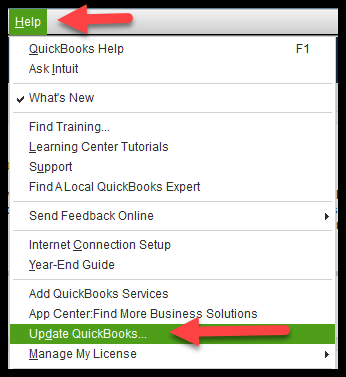
- Go to Help > Update QuickBooks Desktop.
- Click Update Now.
- Select Get Updates.
- Restart QuickBooks after the update finishes.
Method 4: Use QuickBooks Install Diagnostic Tool
The QuickBooks Install Diagnostic Tool can repair installation problems.
- Close QuickBooks.
- Download and install QuickBooks Tool Hub.
- Open Tool Hub.
- Click Installation Issues.
- Select QuickBooks Install Diagnostic Tool.
- Let the tool scan and repair issues.
- Restart your computer.
Method 5: Repair QuickBooks Desktop
- Close QuickBooks.
- Open Control Panel.
- Select Programs and Features.
- Find QuickBooks Desktop.
- Click Uninstall/Change.
- Select Repair.
- Wait for the repair process to finish.
- Restart your computer.
Method 6: Disable Antivirus Temporarily
Sometimes antivirus software blocks QuickBooks files.
- Turn off your antivirus temporarily.
- Add QuickBooks to the antivirus exceptions list.
- Restart QuickBooks.
If the error disappears, the antivirus may have been causing the problem.
Method 7: Delete Temporary Files
Too many temporary files can slow down your system.
- Press Windows + R.
- Type %temp% and press Enter.
- Select all files.
- Delete them.
- Skip any files that cannot be deleted.
Method 8: Perform a Clean Install of QuickBooks Desktop
If nothing works, reinstall QuickBooks.
- Uninstall QuickBooks Desktop.
- Download the latest QuickBooks version.
- Install QuickBooks Tool Hub.
- Open Tool Hub.
- Run the QuickBooks Clean Install Tool.
- Reinstall QuickBooks Desktop.
- Open QuickBooks and check the error.
You can also run QuickBooks File Doctor to repair company file problems.
Method 9: Fix the Installation File of QuickBooks
A damaged QuickBooks installation file can cause errors like QBW32.exe Fatal Application Exit. Repairing the installation files can help QuickBooks work properly again.
Follow These Steps:
- Close QuickBooks Desktop completely.
- Press Windows + R, type Control Panel, and press Enter.
- Click Programs and Features.
- Find and select QuickBooks Desktop from the list.
- Click Uninstall/Change at the top.
- Select the Repair option and click Next.
- Wait for Windows to repair the QuickBooks installation files.
- Once the repair process is finished, restart your computer.
- Open QuickBooks and check if the QBW32.exe Error has been resolved.
Why This Works
Repairing the installation file replaces damaged or missing QuickBooks program files without affecting your company data. This can fix problems caused by corrupted installation files, incomplete updates, or damaged Windows components.
Method 10: Create a New Windows User
Sometimes, QuickBooks Error QBW32.exe can happen because your Windows user account is damaged. Creating a new Windows user account may help fix the problem.
Follow These Steps:
- Open the Start Menu.
- Go to Settings and select Accounts.
- Click Other Users or Family & Other Users.
- Select Add Account.
- Click I don’t have this person’s sign-in information.
- Choose Add a user without a Microsoft account.
- Enter a new username and password.
- After creating the account, select it and change the account type to Administrator.
- Sign out of your current account.
- Log in using the new user account.
- Open QuickBooks and check if the error is gone.
Why This Works
A damaged Windows profile can stop QuickBooks from working correctly. Creating a new Windows user gives QuickBooks a fresh account to run on and may fix the QBW32.exe Error.
Method 11: Restart Your Computer
Sometimes, QuickBooks Error QBW32.exe can happen because Windows or Mac has not been restarted properly. A simple restart can refresh system files and fix temporary problems.
For Windows
- Click the Start button.
- Select the Power icon.
- Click Restart.
- Wait for your computer to restart completely.
For Mac
- Click the Apple Menu at the top-left corner.
- Select Restart.
- Wait for your Mac to restart.
Check QuickBooks Again
After your computer restarts, open QuickBooks Desktop and see if the QBW32.exe Error or Fatal Application Exit message is gone.
Why This Works
Restarting your computer clears temporary system issues, refreshes Windows or Mac processes, and can help QuickBooks run smoothly again.
Conclusion
QuickBooks Error QBW32.exe or QBW32.exe Fatal Application Exit usually happens because of damaged QuickBooks files, corrupted company data, Windows issues, or antivirus interference. By following the methods above, you can fix the error and get QuickBooks working again.
If the problem continues after trying all these solutions, you may need professional QuickBooks support to repair your company file and software.
FAQS
Can a damaged company file cause the QBW32.exe Error in QuickBooks?
Yes. A damaged or corrupted company file is one of the most common reason for the
QBW32.exe Error in QuickBooks Desktop. When the company file is not working properly,
QuickBooks may become slow, freeze, crash unexpectedly, or show the QBW32.exe Fatal Application Exit error. In some cases, it can even prevent you from accessing your financial data. Running QuickBooks File Doctor or restoring a backup file may help fix the issue.
What is the use of the QBW file in QuickBooks?
The QBW file is the main company file used by QuickBooks Desktop to store your financial data, such as customer information, transactions, invoices, payroll records, and reports. When you open QuickBooks, the QBW file loads into your computer’s memory (RAM) so the software can access and manage your accounting data quickly. Without the QBW file, QuickBooks cannot open or display your company information
How Many Methods Are Available to Fix the QBW32.exe Error?
A. There are several ways to fix the QBW32.exe Error in QuickBooks Desktop. The best solution depends on what is causing the problem. You may need to try more than one method to resolve the error completely.
Some common solutions include:
Stop the QBW32.exe Process
Open QuickBooks Desktop in Suppressed Mode
Update QuickBooks Desktop
Run the QuickBooks Install Diagnostic Tool
Fix the QuickBooks Installation File
Repair QuickBooks Desktop
Disable Antivirus Temporarily
Delete Temporary Files
Create a New Windows User
Restart Your Computer
Perform a Clean Install of QuickBooks Desktop
These methods can help fix QBW32.exe Fatal Application Exit and other related QuickBooks issues.
What is the AVMTimer App Fatal Issue?
The AVMTimer App Fatal Issue is an error that causes QBW32.exe to crash in
QuickBooks Desktop. It can make QuickBooks freeze, close suddenly, or stop working properly.
Read About other Quickbooks Error’s